Create Project
Once your PayNet account is created, you're ready to create a project in Developer Portal. Each project brings together the key details, roles, and resources needed for a smooth and successful self-certification.
Watch the video demo to learn how to create a new SAN project in the PayNet Developer Portal.
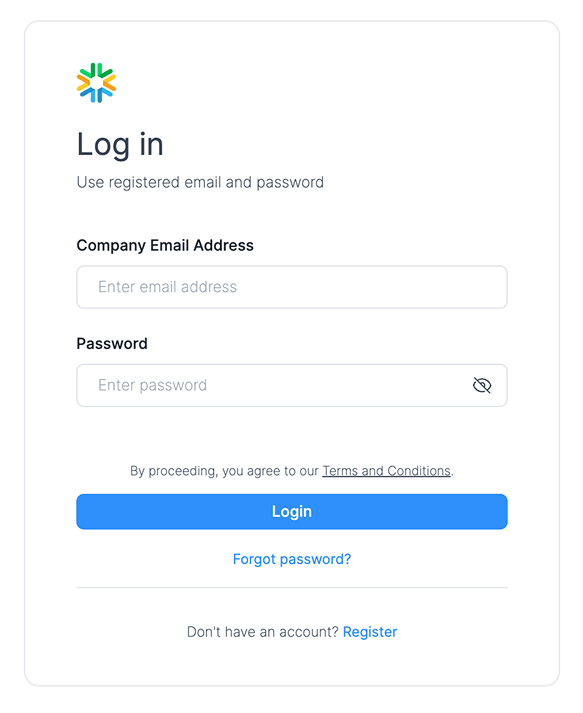
Step 1: Log in to your PayNet account
Log in to your account using either the PayNet Developer Portal or PayNet One Stop Portal.

Type in your registered PayNet email address and password, then select Login to continue.
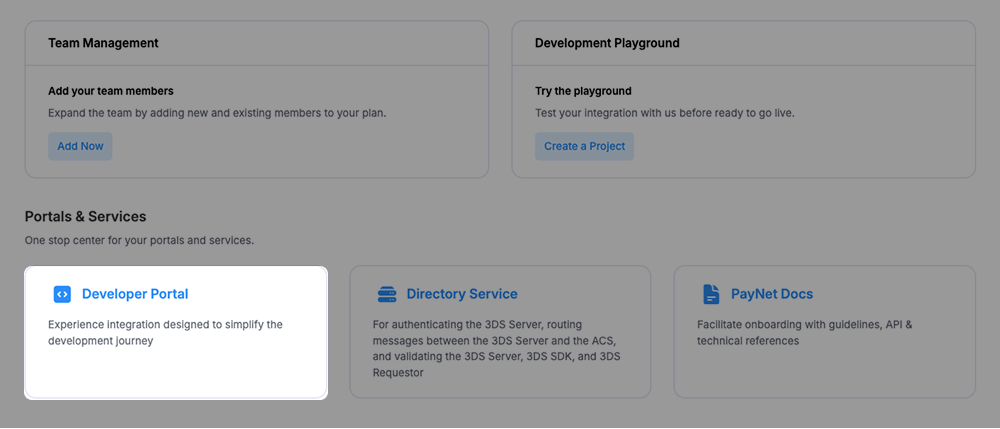
Step 2: From the dashboard, click on Developer Portal to continue
After logging in, you will be directed to the Dashboard. Click the highlighted Developer Portal to proceed.
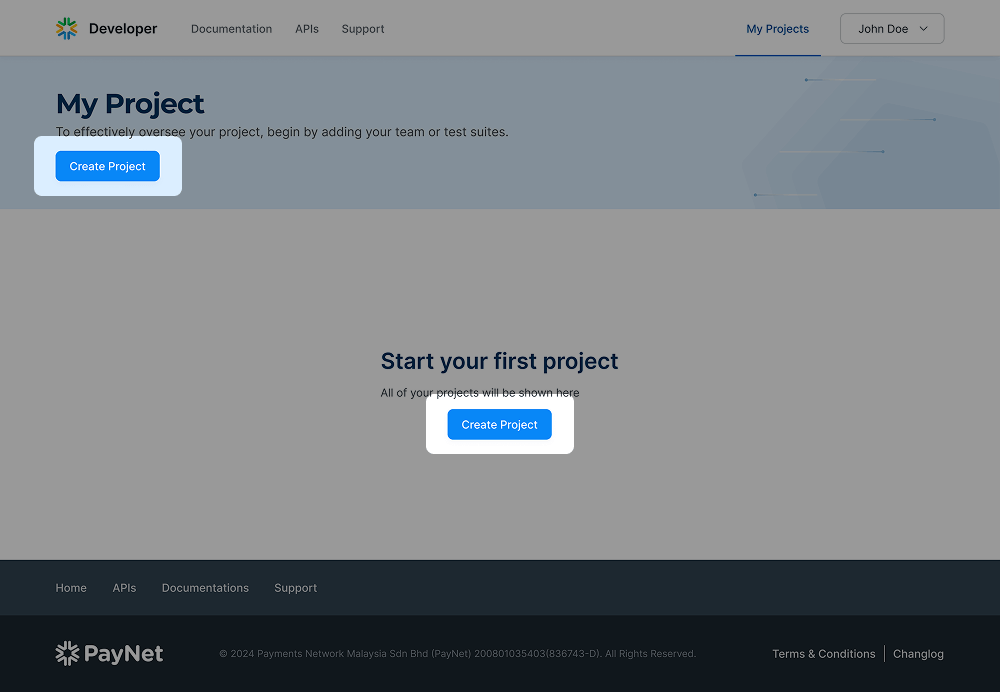
On the Developer Portal Project Management page, select My Projects and click the Create Project button to start your first project.
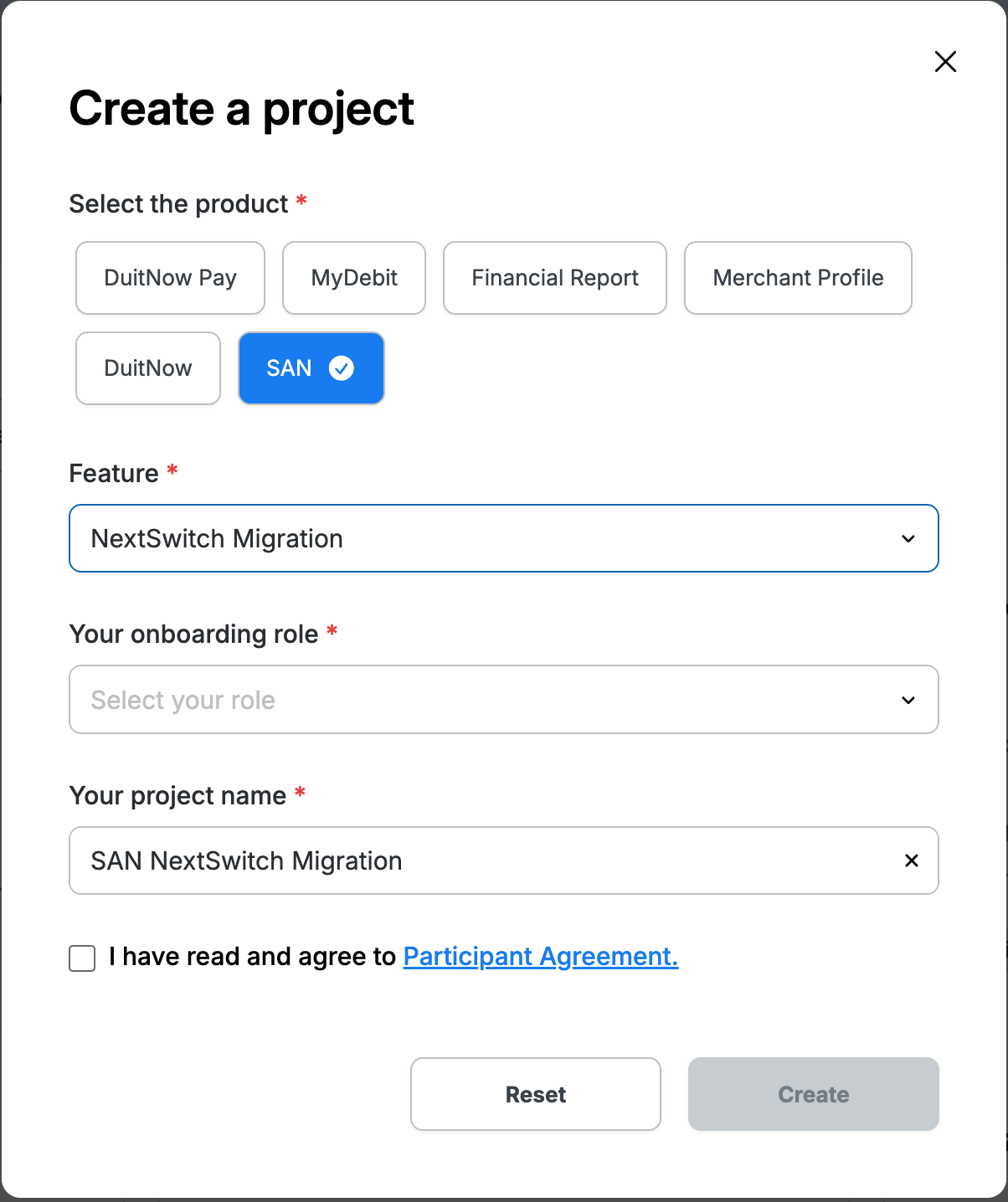
Step 3: Select Product, Features, and Role
Select SAN for the product and NextSwitch Migration for the feature. Then, choose your onboarding role. The project name will be auto-filled but can be edited if needed. Finally, review the Participant Agreement and click Create to complete the setup.
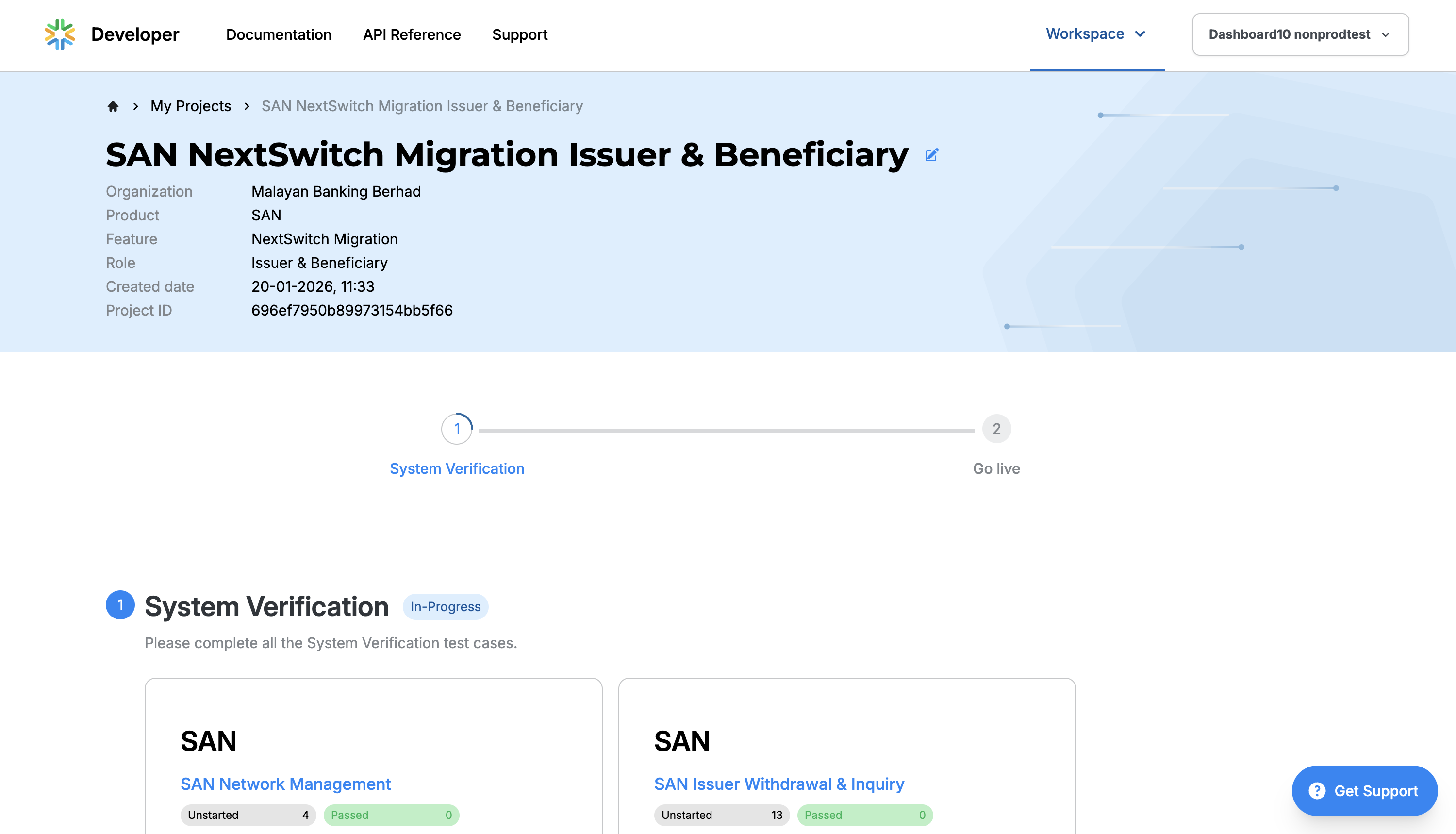
When the project is successfully created, the project details will be shown on this page.
Onboarding Roles (Personas)
| Onboarding Roles (Persona) | Who | Test Suites |
|---|---|---|
| ATM Acquirer |
|
|
| Issuer & Beneficiary |
|
|
| ATM Acquirer, Issuer & Beneficiary |
|
|
Next Step – Manage Team Members
In this step, you’ll learn how to manage your team members
Learn more