Generate CSR and Private Key
Below is a summary of the three (3) steps required to complete the renewal process.
You are currently at Step 1: Generate the CSR and Private Key.

Login and Access to Paynet One Stop Portal
Log in to your account using either the PayNet Developer Portal or PayNet One Stop Portal. You can refer the guide here.
Watch the video demo to learn how Certificate Signing Request (CSR) Procedure
Certificate Signing Request (CSR) Procedure
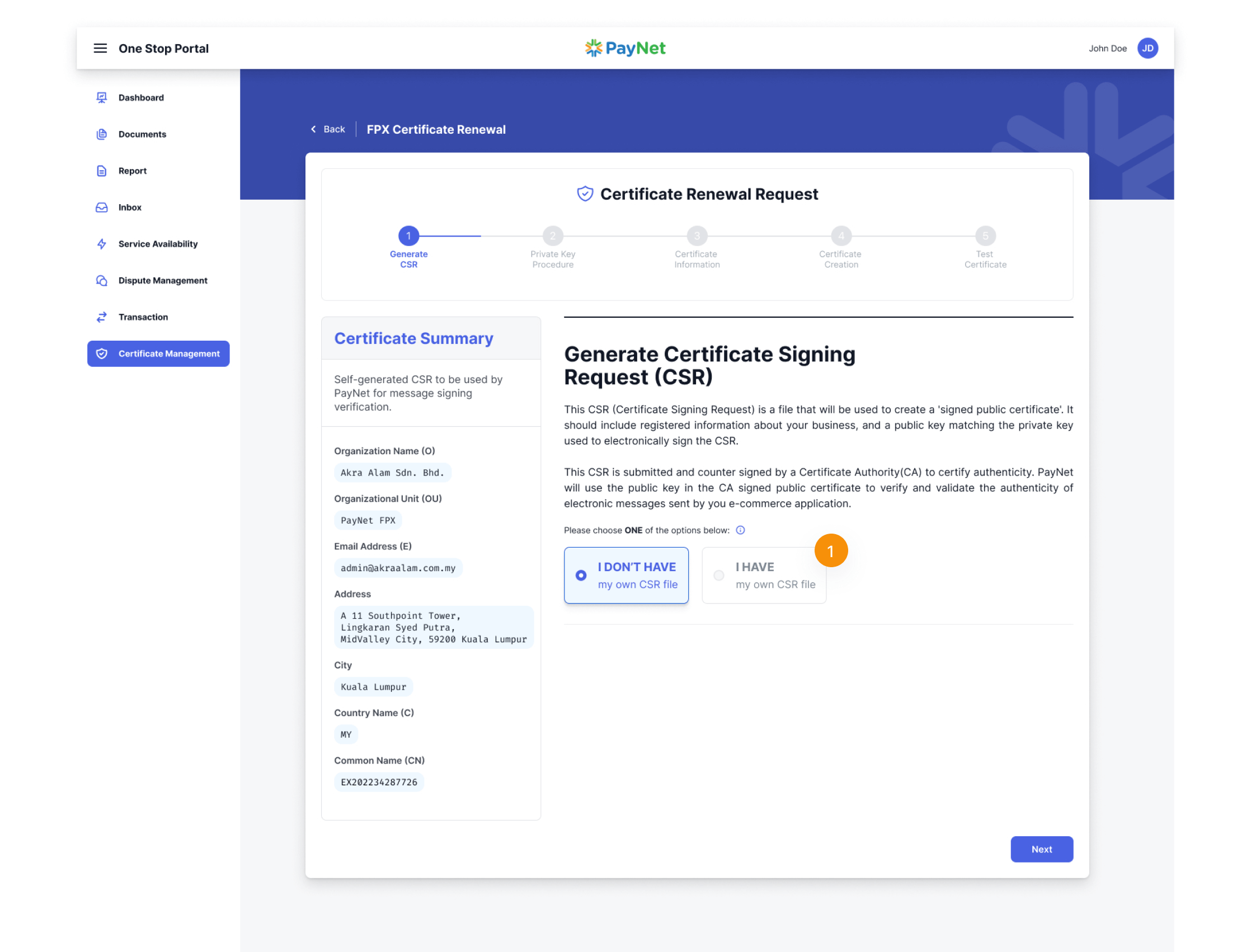
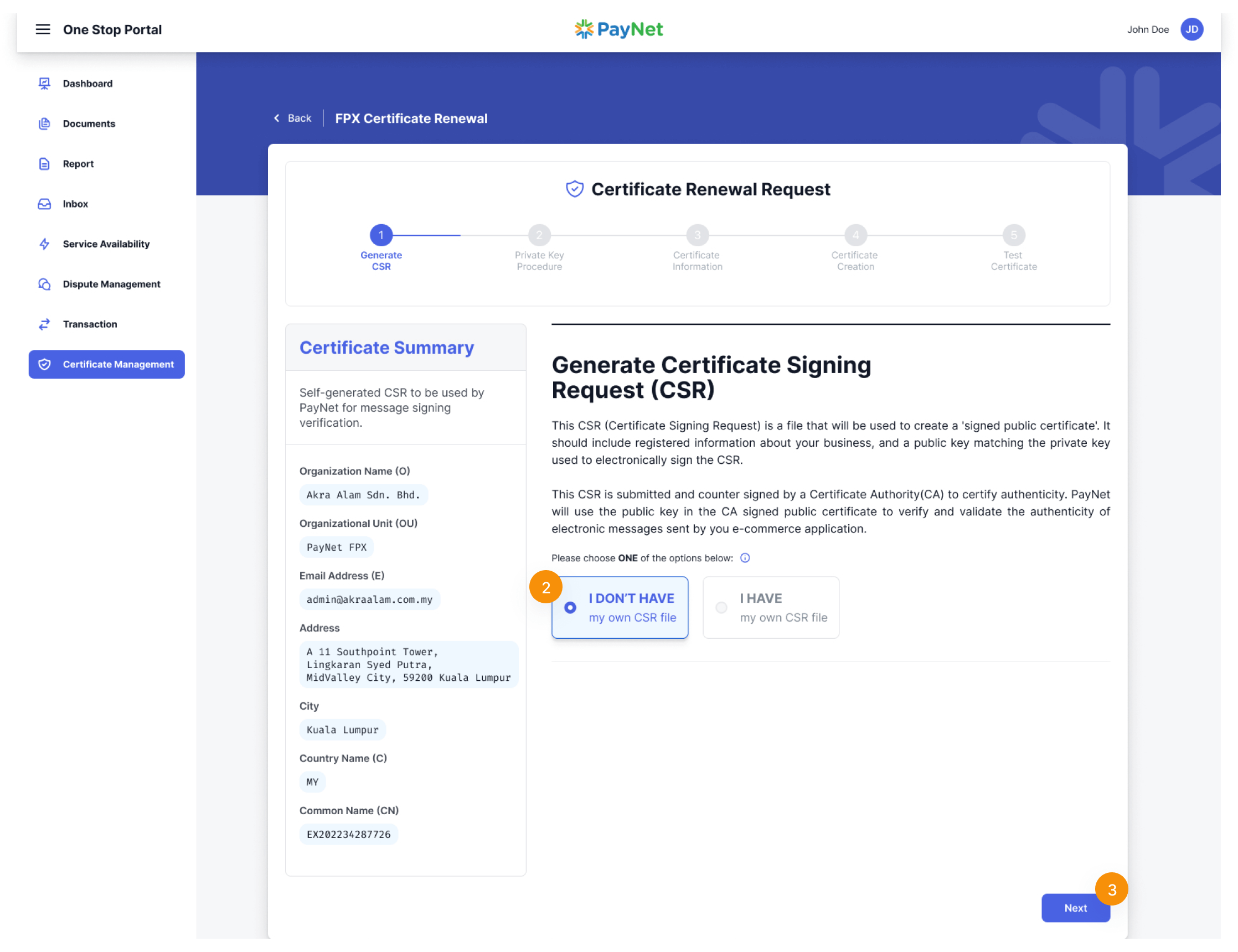
The initial step in the Certificate Renewal Request is the Generate Certificate Signing Request (CSR) procedure. You have two (2) methods to create a CSR for certificate renewal: PayNet can generate a new CSR for you, or you can generate a CSR file manually. Please choose the option that best suits your preference.
Note

Certificate Information
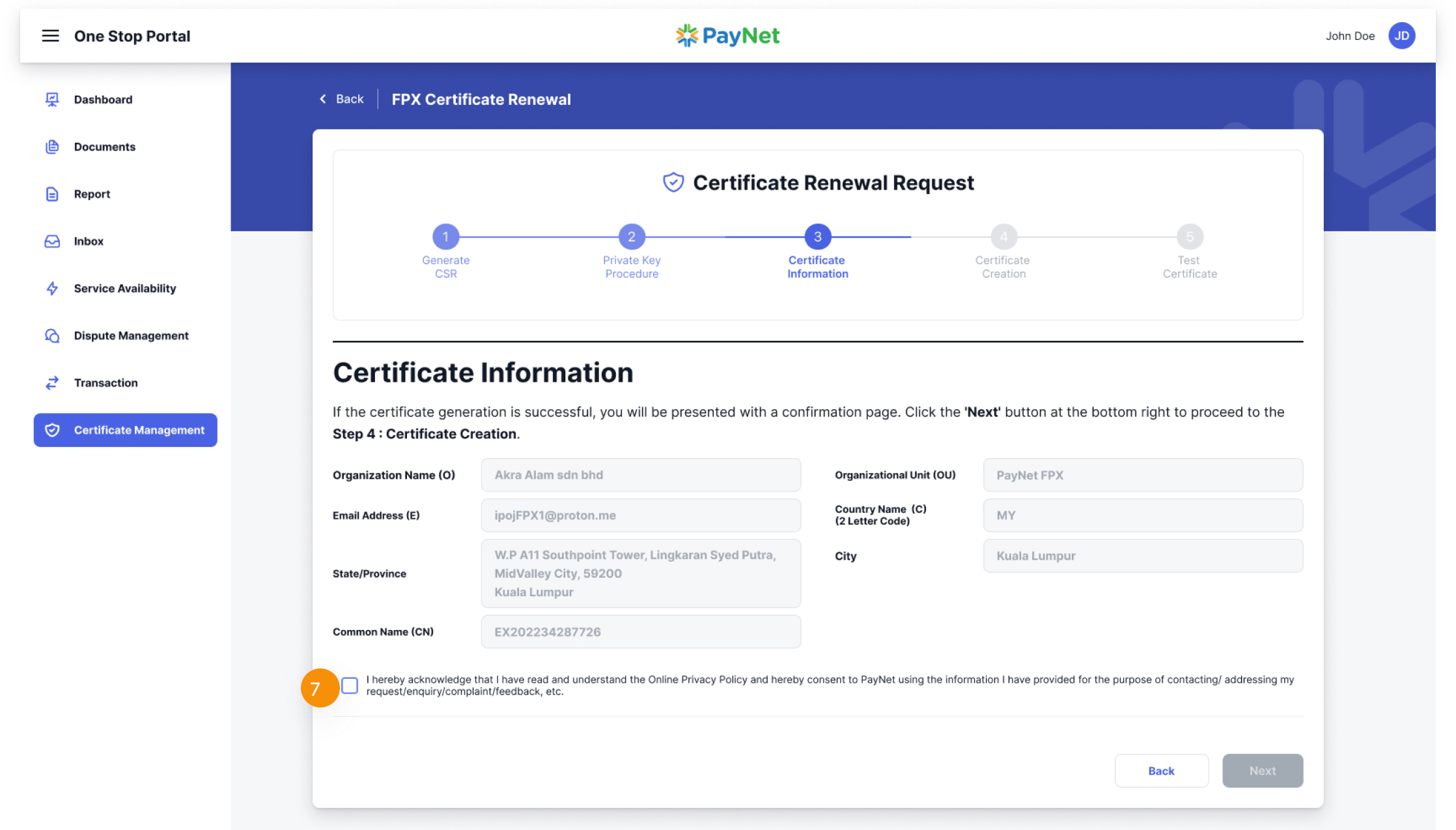
Certificate Information is the next step of Certificate Renewal Request. In this page you will be presented with information of your certificate:
- If you chose ‘I DON’T HAVE my own CSR file’, we will use your information in our database to generate the CSR and certificate.
- If you chose ‘I HAVE my own CSR file’, these information are extracted from the CSR you provided.
Certificate Creation
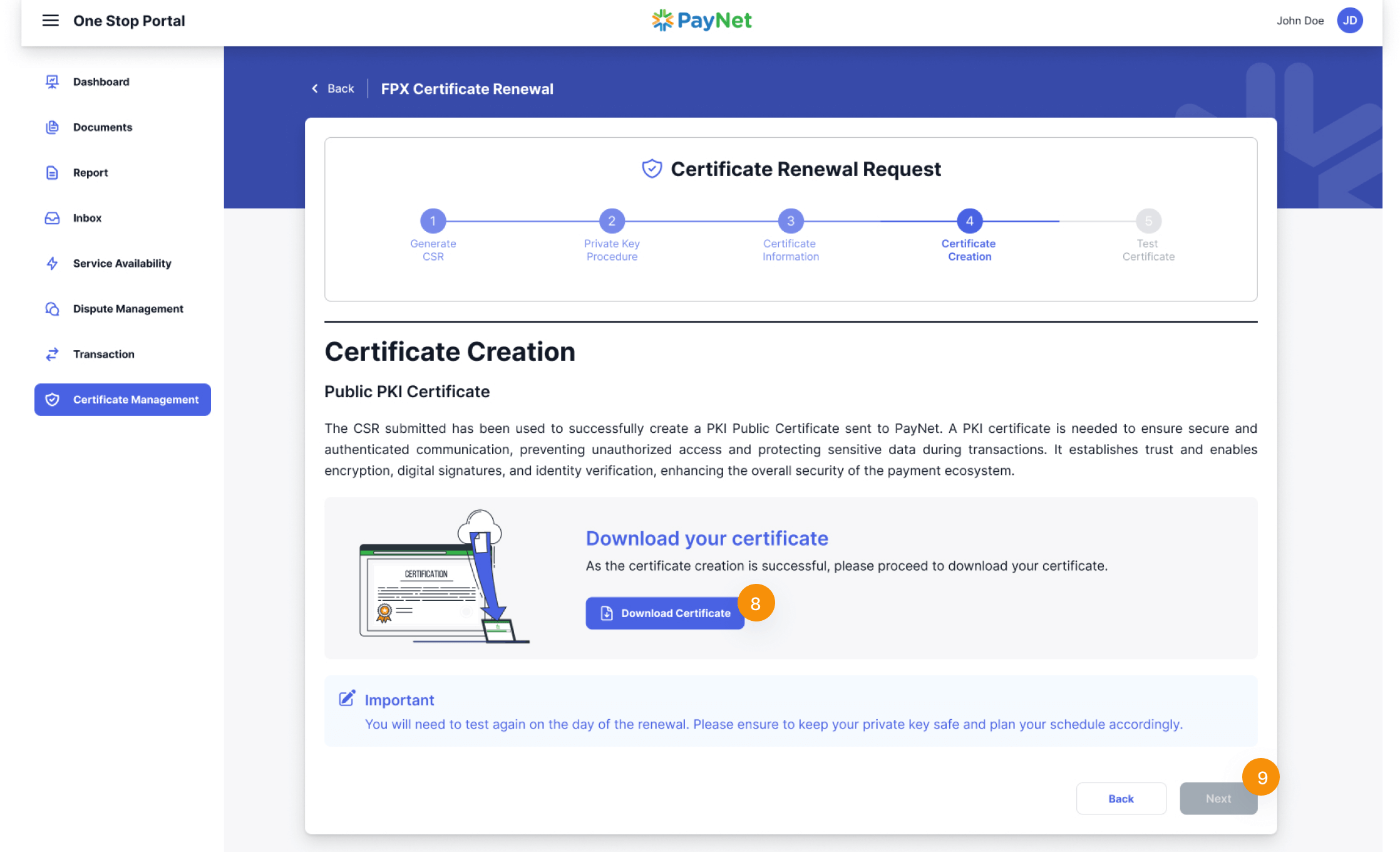
Once the certificate creation is successful, please proceed to download your certificate
Next Step – Verify Certificate
In this step, you’ll learn how to Verify Certificate.
Learn more