Generate CSR and Private Key
Below is a summary of the three (3) steps required to complete the renewal process.
You are currently at Step 2: Verify Certificate.

Login and Access to Paynet One Stop Portal
Log in to your account using either the PayNet Developer Portal or PayNet One Stop Portal. You can refer the guide here.
Watch the video demo to learn how verify certificate
Verify Certificate
Testing Certificate Process
To uphold the utmost security and trust in our system, verifying key matches is essential. Ensuring the validity and integrity of cryptographic certificates through the testing of private key matches with our public key allows us to confidently proceed with certificate rotation, guaranteeing seamless and secure communication.
In the realm of RSA cryptography, a key pair (comprising a public and private key) is generated based on two large prime numbers. The product of these two prime numbers is what we refer to as the "modulus." This modulus is an essential part of both the private and public keys, acting as a shared link between them.
In simpler terms, the modulus is a unique identifier that helps in ensuring that a particular private key corresponds to a specific public key. By comparing the modulus of your private key with that of our public key, we can verify that they are indeed a matching pair.
There are two ways to access the testing page:
- If you continue from the previous process, you can select ‘Next’ from the bottom right of the confirmation page.
- If you come from the Certificate Management Dashboard, identify the certificate with the tag ‘Pending Testing’. Follow the steps below to ensure proper functionality and security.
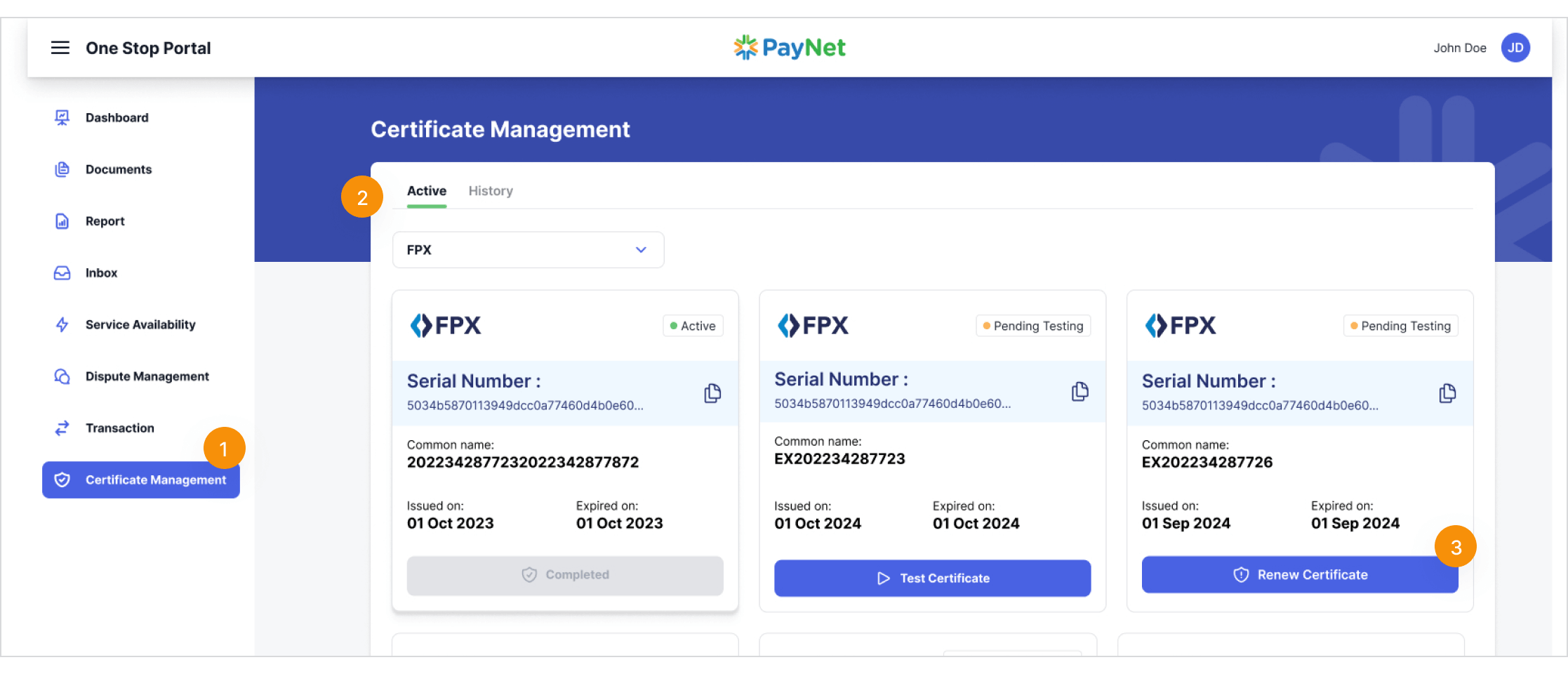
Choose the appropriate option:
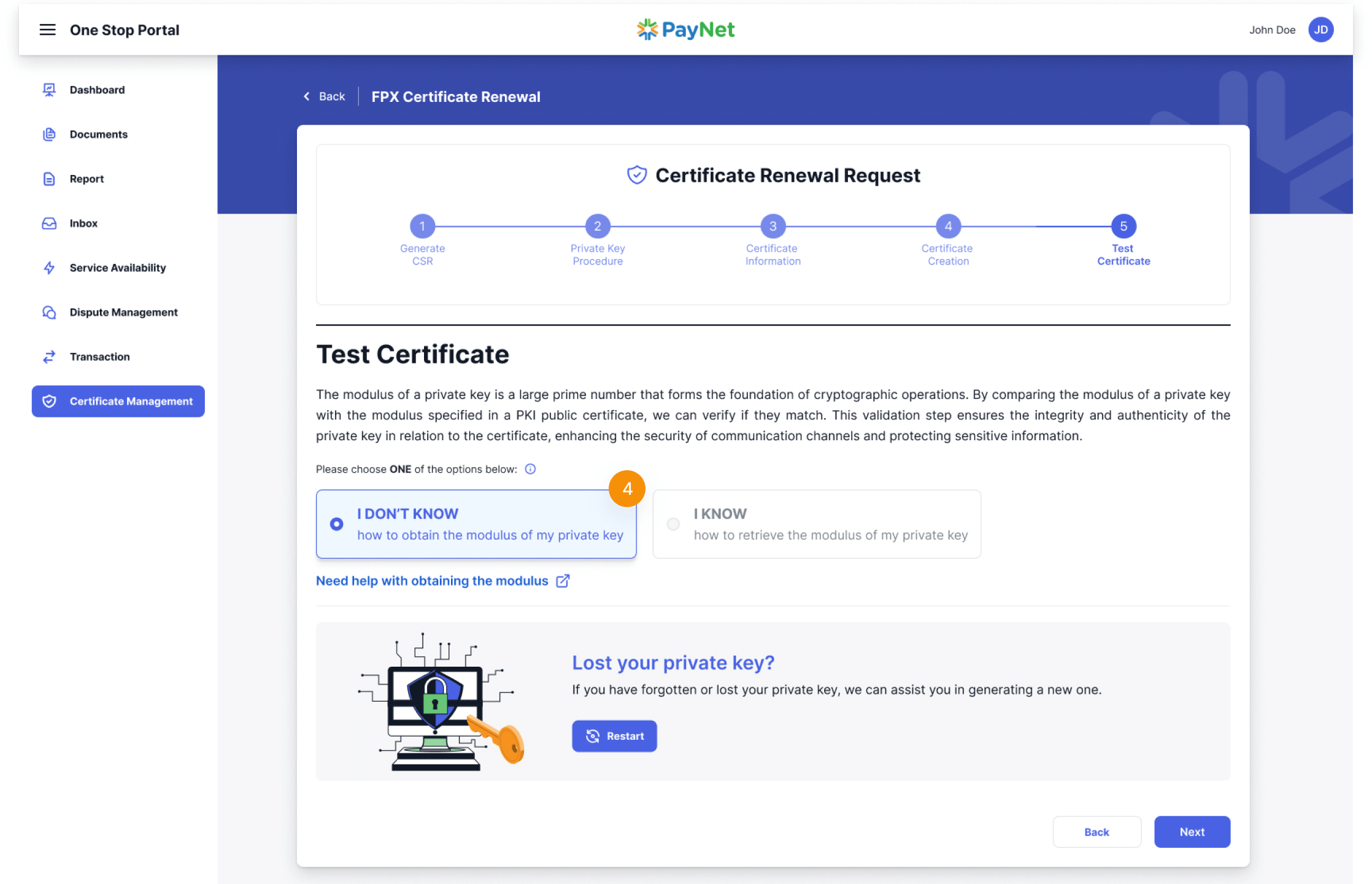
- Select I DON’T KNOW how to obtain the modulus of my private key if you are unfamiliar with the process.
- Select I KNOW how to retrieve the modulus of my private key if you can provide the modulus directly.
Note
Test Certificate, participants will proceed with the renewal process, choose the option that best suits your requirement. There are two (2) options for participants to choose from: the first option is ‘I DON’T KNOW how to obtain the modulus of my private key’ and the second option is ‘I KNOW how to obtain the modulus of my private key.’
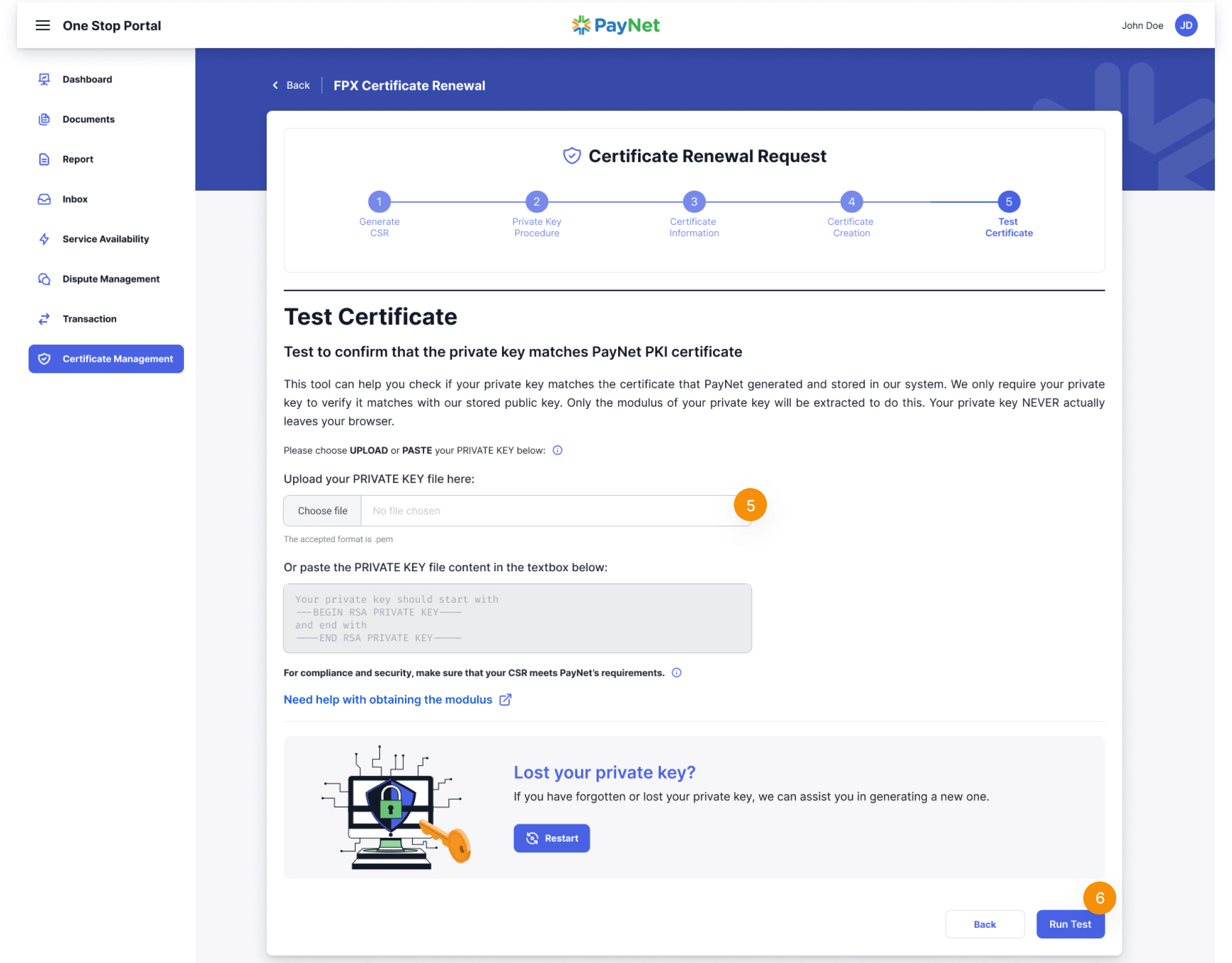
Note
On this page, if participants have lost their private key, they have the ability to request a new one. By clicking on the ‘Restart’ button, participants will be prompted with a dialog box and must agree to several requirements before proceeding to request a new private key.

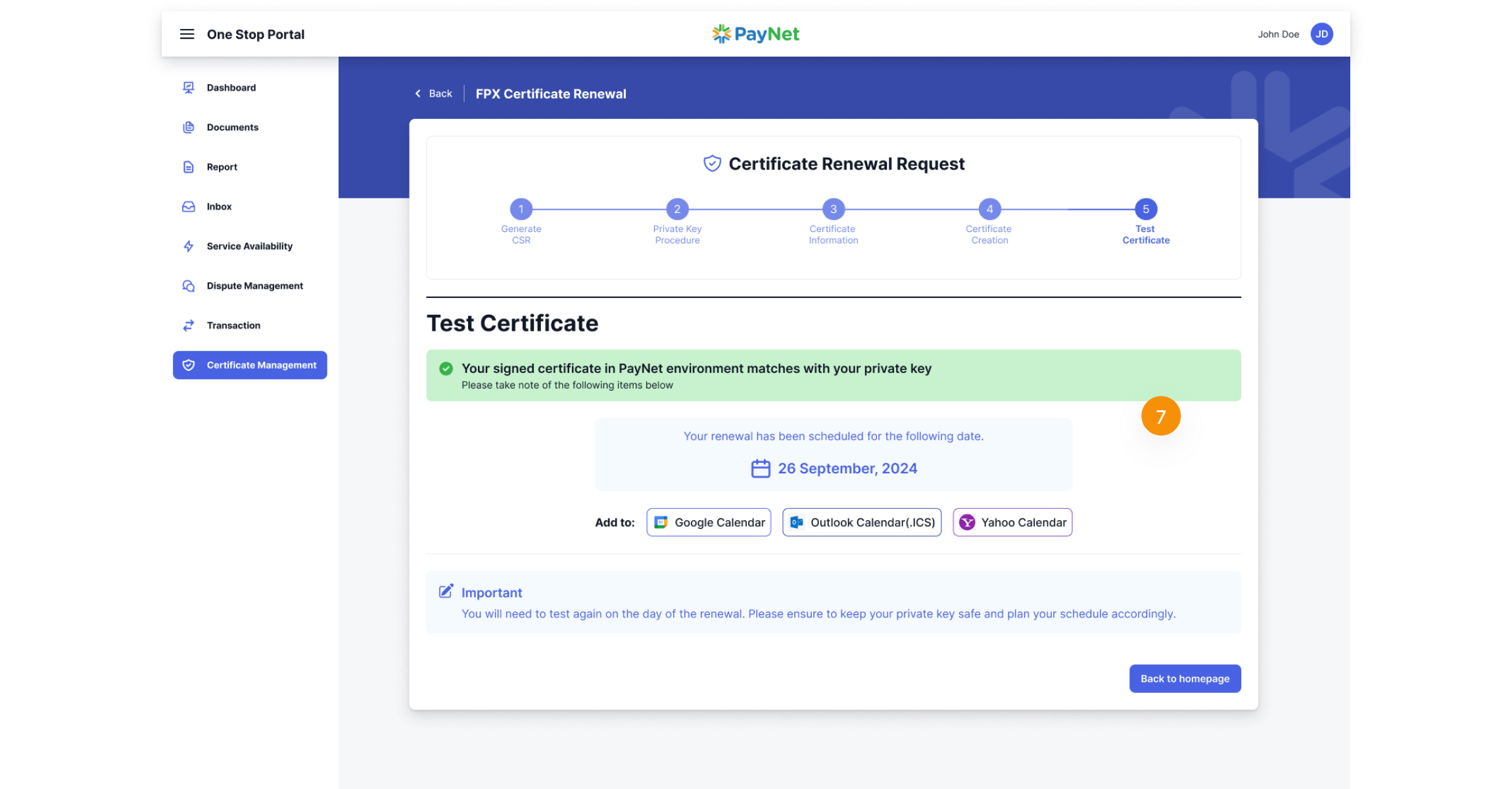
After you have successfully completed the test, the system will automatically schedule the date and time for the key rotation in our system. On the designated time, please log in to One Stop Portal again.
Furthermore, the key matching test will be conducted again, so be sure to keep your private key secure. In addition to this page, we have added new features that allow participants to set a date on their calendar as a reminder.
Attention
Next Step – Key Rotation (Publish)
In this step, you’ll learn how to do Key Rotation (Publish).
Learn more