Overview
Below is a summary of the three (3) steps required to complete the renewal process. Click the tab to view the details
- 1Generate CSR and Private key
- 2Verify Certificate
- 3Key Rotation (Publish)
The first step is to generate a CSR (Certificate Signing Request) and Private Key. A CSR is a vital file used in creating a 'signed public certificate.' It contains registered business information and a public key that corresponds to the private key used for electronically signing the CSR.
Once generated, the CSR is submitted and counter-signed by a Certificate Authority (CA) to certify its authenticity. PayNet will then utilize the public key within the CA-signed public certificate to authenticate and validate the legitimacy of electronic messages sent by your e-commerce application.
You have the option to generate the key-pair and CSR files manually following our guidelines or rely on our built-in tools for automatic generation. Please note that the tool will run on client-side browsers, ensuring that PayNet cannot view or access the generated private key to mitigate non-repudiation and security risks.
In the second step, Testing the Certificate is crucial for system security and trust. This process verifies cryptographic certificates by aligning your private key with our public key, ensuring confident certificate rotation for secure communication. In RSA cryptography, the modulus, derived from the product of two prime numbers, serves as a unique identifier in both keys. By comparing moduli, we confirm the match between your private key and our public key.
To proceed with this step, the modulus from your private key is required. You can obtain this modulus in two ways: manually extracting it from your private key following the steps outlined in our guide, or uploading your private key and allowing our tool to extract the modulus automatically.
Please note that the tool runs on client-side browsers, ensuring that PayNet cannot view or access the generated private key to mitigate non-repudiation and security risks.
After successfully completing the test, the system will automatically schedule the key rotation in our system. Please log in to One Stop Portal again at the designated time.
Please ensure that the files that have been generated (key-pair, CSR, certificate) are securely stored. The private key in particular will be required for the next step of the process.
After requesting renewal, when the designated date arrives, please log in to One Stop Portal again. You'll notice the status displaying "Ready for renewal." At this point, click the "Test Certificate" button.
Upon completing the certificate testing one more time to verify that the new private key matches the new certificate on our servers, the keys and certificate will automatically be rotated. Please be ready to update your application with the new private key to minimise any potential disruptions.
Login to your PayNet account
Log in to your account using either the PayNet Developer Portal or PayNet One Stop Portal.

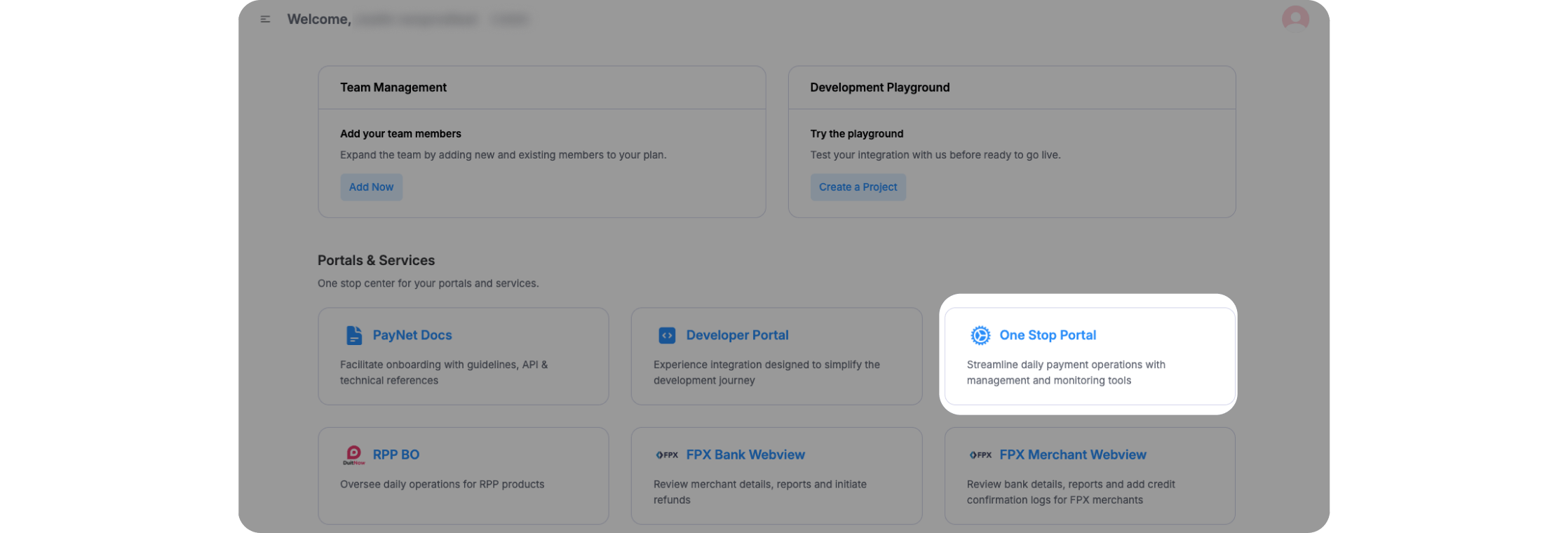
In PayNet dashboard access to One Stop Portal.
Certificate Management
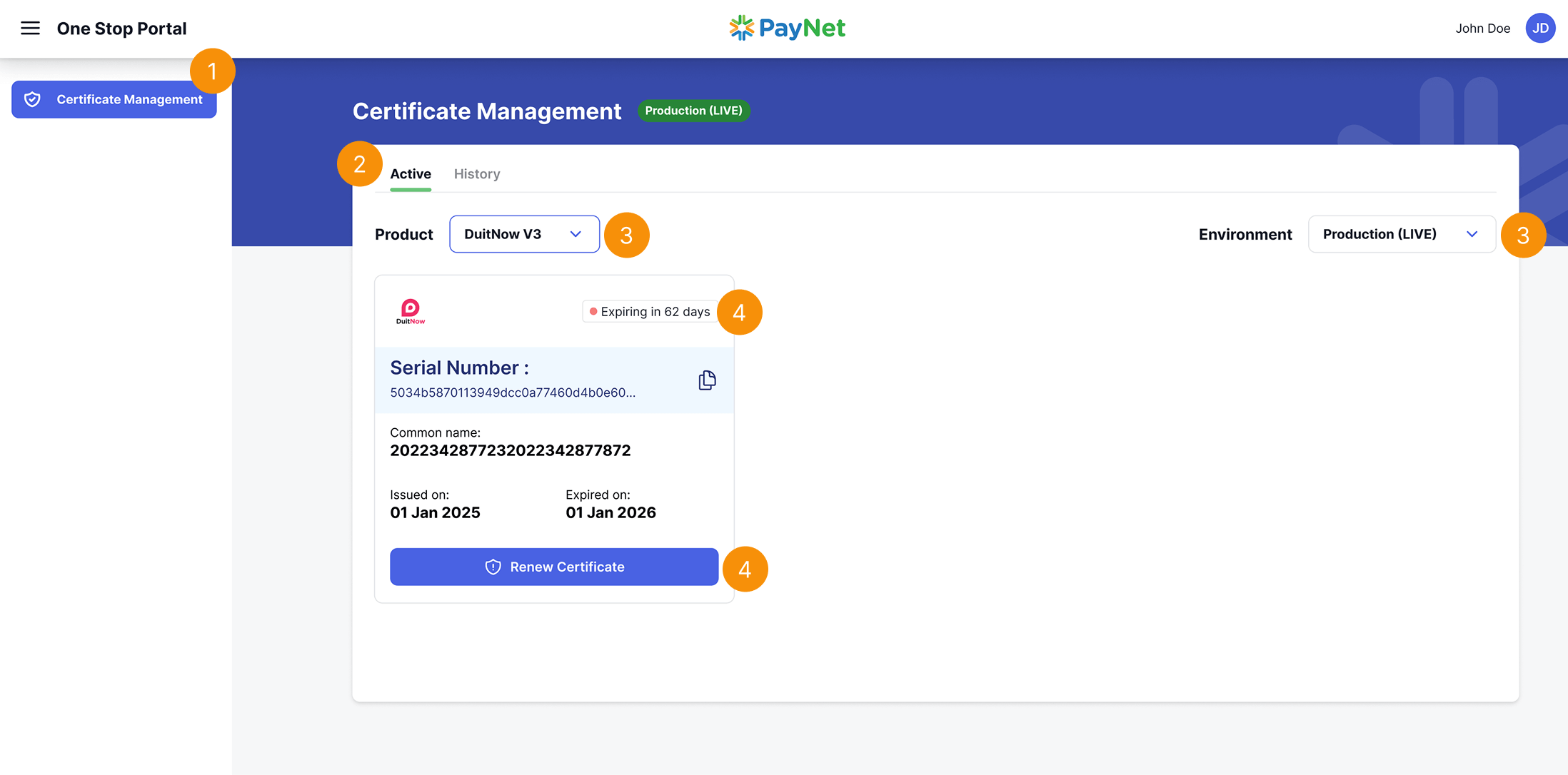
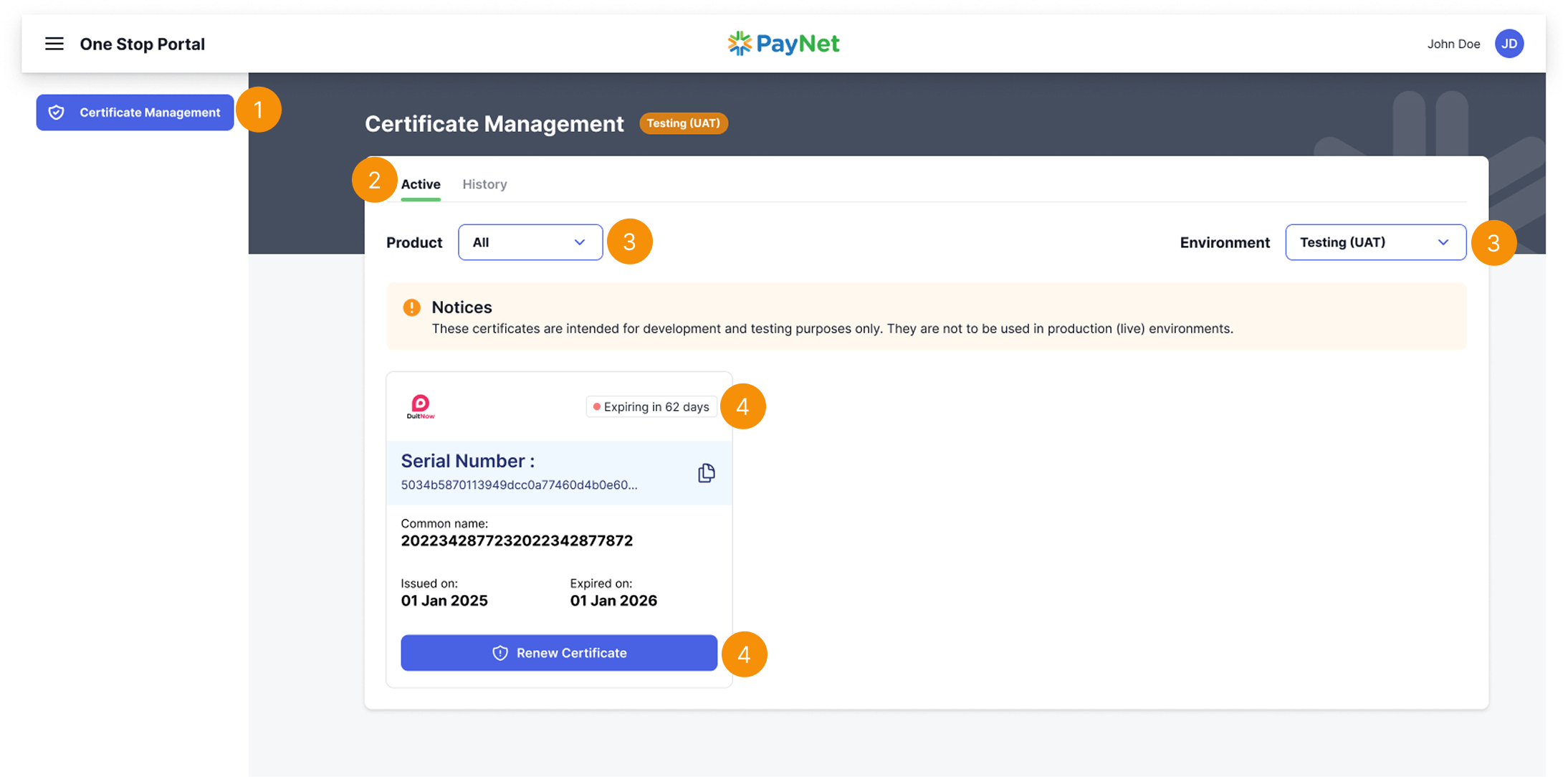
- Select the "Certificate Management"
- Select 'Active' tab
- Select product and right side Environment "Product (Live)" or "Testing UAT".
- Identify certificates with yellow or red indicator, indicating certificates that are either expiring in less than 90 days or have passed their expiration date. Click on "Renew Certificate".
Production (Live)
Testing (UAT)
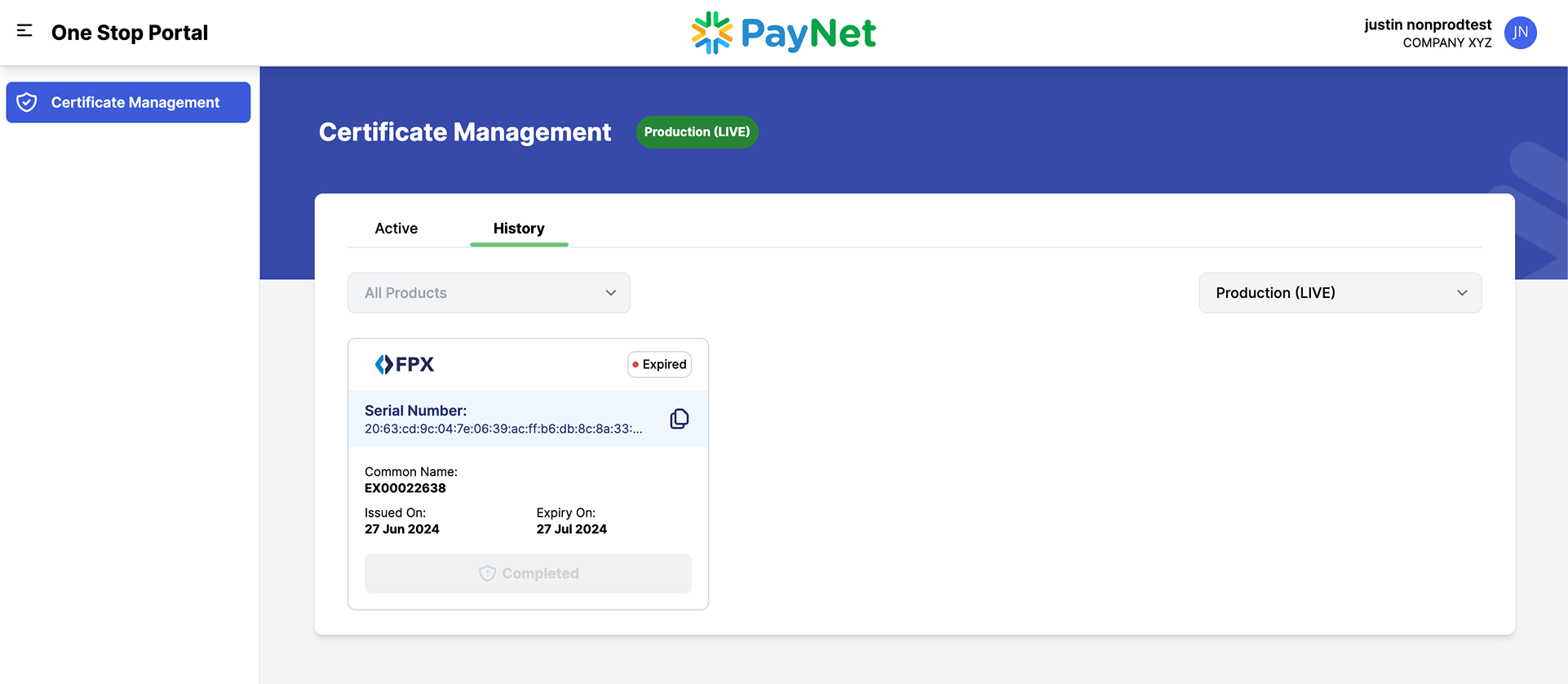
History
The history allows you to review expired certificates.
Next Step – Generate CSR and Private Key
In this step, you’ll learn how to Generate CSR and Private key.
Learn more