Generate CSR and Private Key
Below is a summary of the three (3) steps required to complete the renewal process.
You are currently at Step 3: Key Rotation.

Login and Access to Paynet One Stop Portal
Log in to your account using either the PayNet Developer Portal or PayNet One Stop Portal. You can refer the guide here.
Watch the video demo to learn how verify certificate
Key Rotation (Publish)
Verify Key Matches
- Option 1: Using the existing private key
Push the new certificate on the scheduled renewal date. No application private key update is required. - Option 2: Using a new private key
On the scheduled renewal date, update your application's private key before pushing the new certificate. This may result in temporary downtime.
To uphold the utmost security and trust in our system, verifying key matches is essential. Ensuring the validity and integrity of cryptographic certificates through the testing of private key matches with our public key allows us to confidently proceed with certificate rotation, guaranteeing seamless and secure communication.
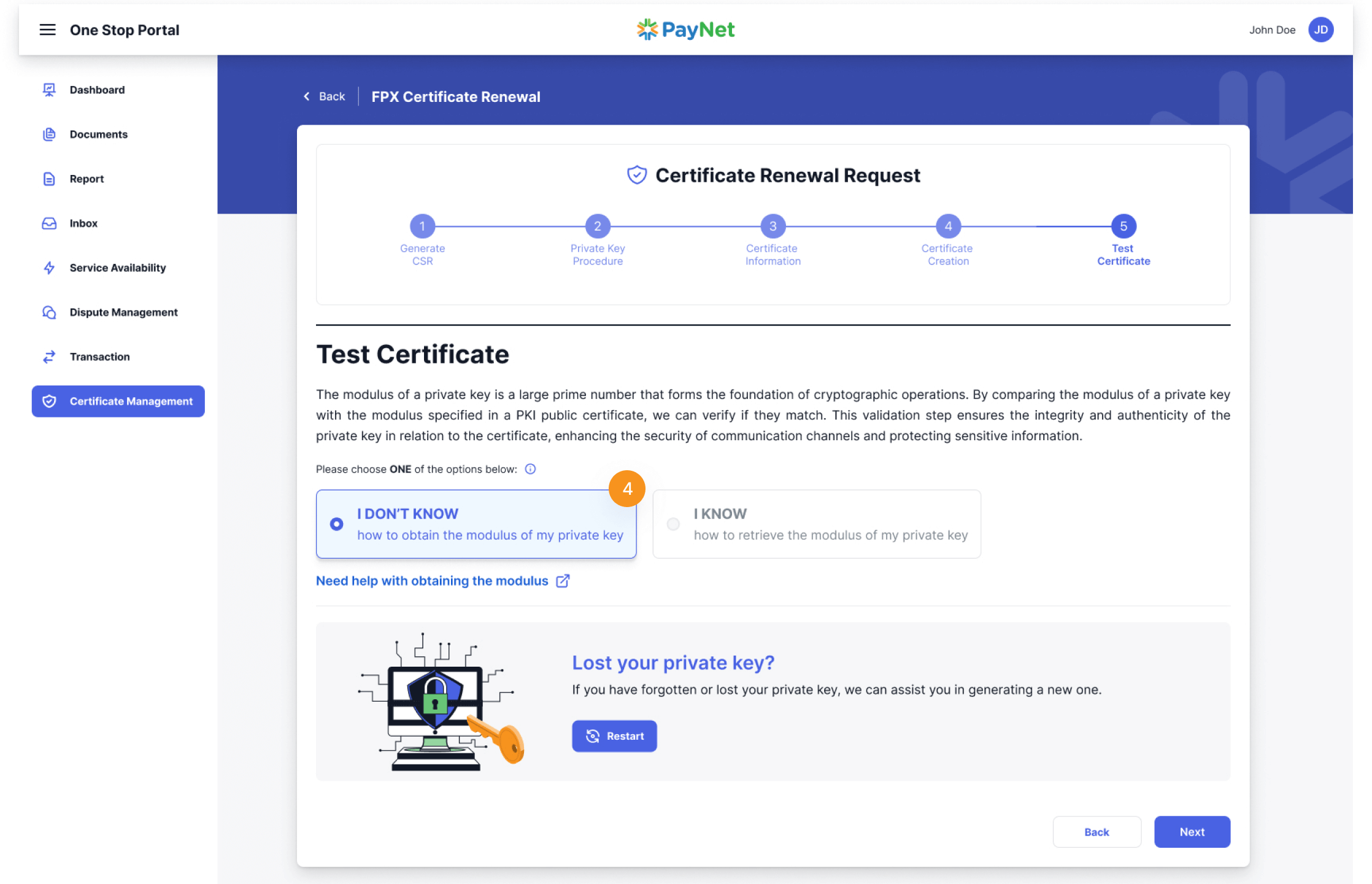
Verify the Modulus of Your Private Key
Choose the appropriate option:
- Select I DON’T KNOW how to obtain the modulus of my private key if you are unfamiliar with the process.
- Select I KNOW how to retrieve the modulus of my private key if you can provide the modulus directly.
Note
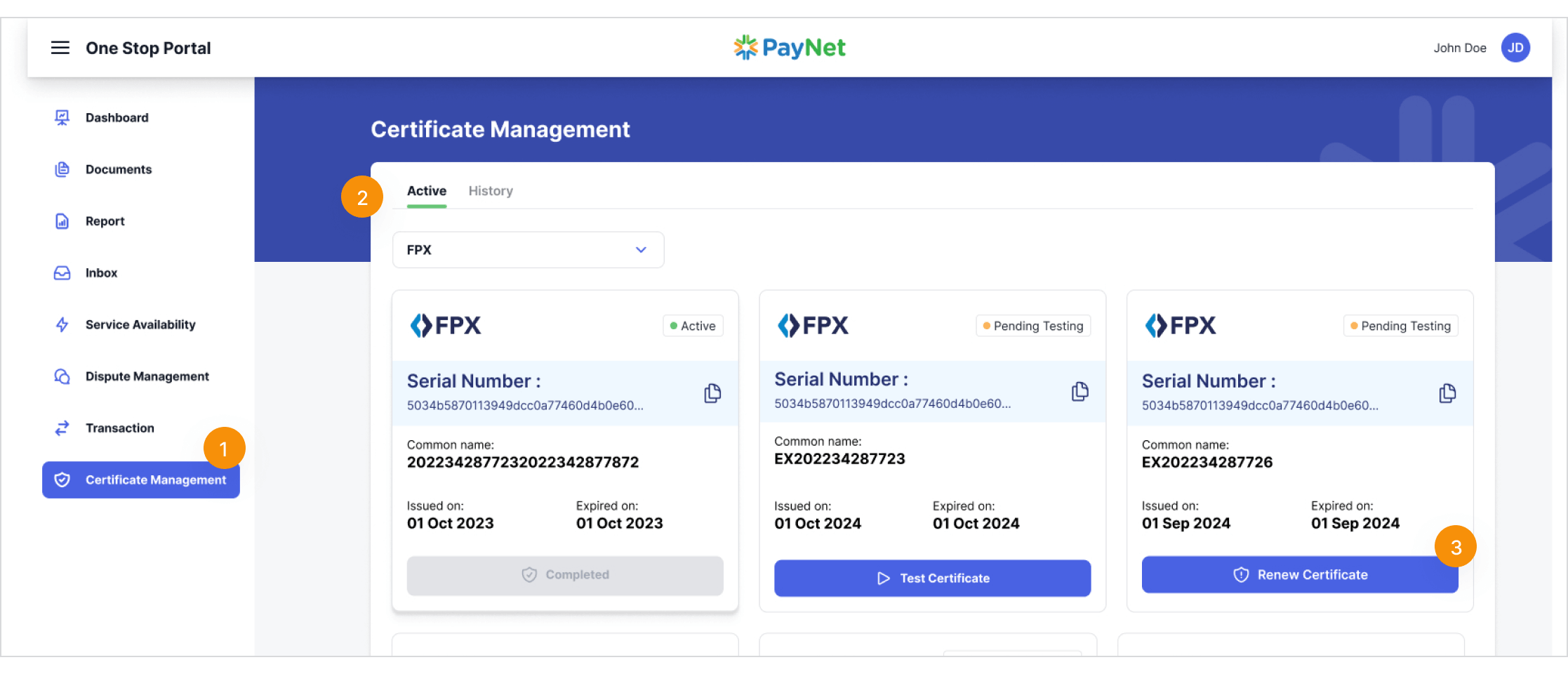
Test Certificate
Test Certificate participants will proceed with the renewal process, choose the option that best suits your requirement. There are two (2) options for participants to choose from: the first option is ‘I DON’T KNOW how to obtain the modulus of my private key’ and the second option is ‘I KNOW how to obtain the modulus of my private key.’
4
Click on ‘I DON’T KNOW how to obtain the modulus of my private key’ button and click ‘Next’ button.
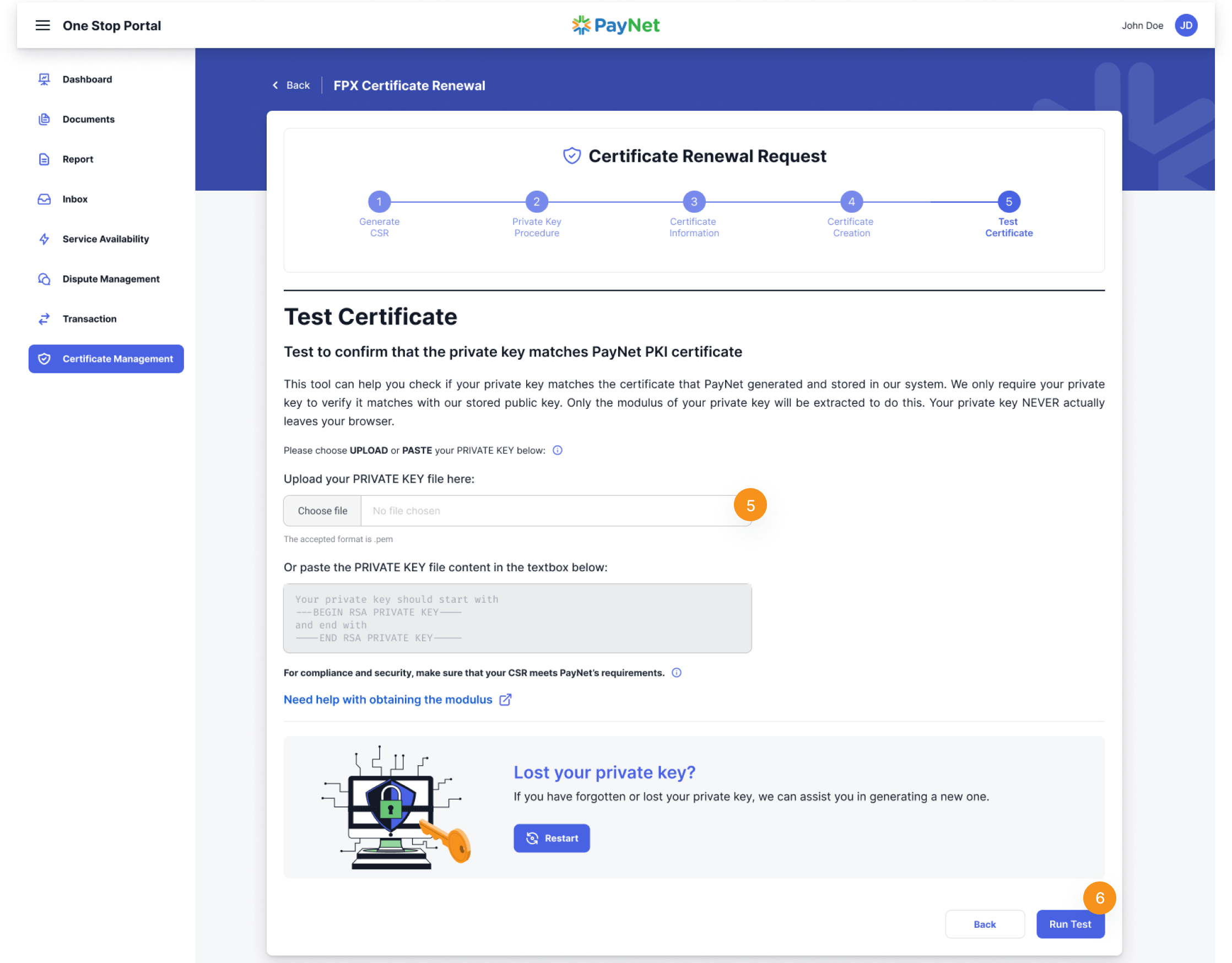
5
The next step requires participants to either upload their private key by clicking on ‘Choose file’ and uploading the file or pasting the private key in the textbox.
6
Then, click on the ‘Run Test’ at the right bottom of the page.
Note
On this page, if participants have lost their private key, they have the ability to request a new one. By clicking on the ‘Restart’ button, participants will be prompted with a dialog box and must agree to several requirements before proceeding to request a new private key.

Confirmation and Private Key Upload
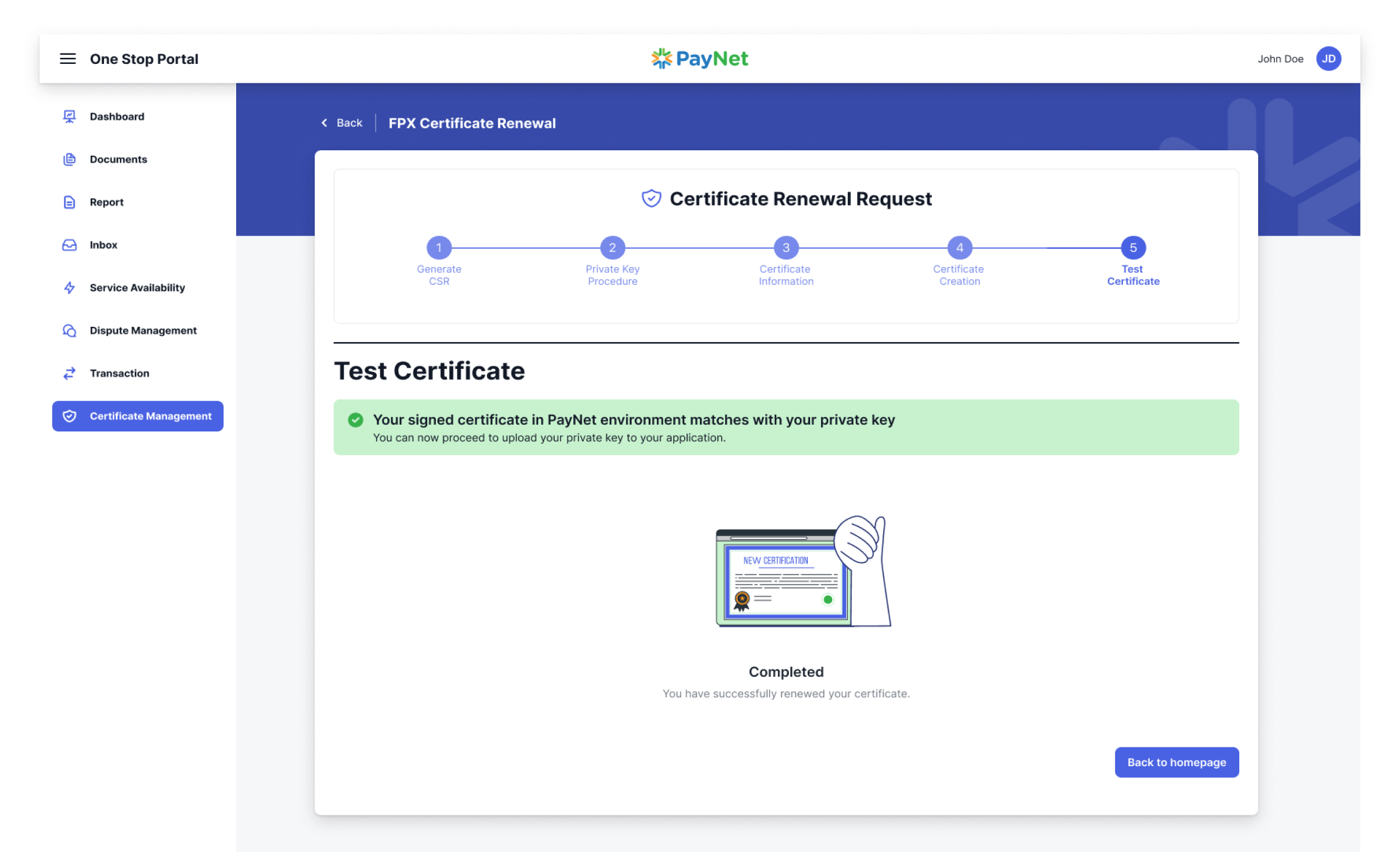
If the test is successful, the new certificate will be pushed to our system to rotate the keys. A confirmation screen will also be shown. Once you're done uploading the private key to your application and confirm that transactions can be made successfully, click Back to Homepage. You will be redirected back to the certificate dashboard and can see your newly published certificate.