Interbank Cash Deposit (IBCD) – Acquirer
This guide provides instructions for Acquirer institutions to test Interbank Cash Deposit (IBCD) transactions using their own terminals / CDMs.
Who should use this: Banks, Non-Banks, TPA operating ATM / CDM networks
Prerequisites
| Item | Provider |
|---|---|
| Your Own Terminal / CDM | Your Organization |
Beneficiary Account (2888 XXXX XXXX) | PayNet |
| Developer Portal Access | PayNet |
| FIID | Your Organization |
Step 1: Execute Transaction on Your Terminal
1.1 PayNet-Provided Beneficiary Account
- Beneficiary Account Number:
2888 XXXX XXXX - Beneficiary Bank: PayNet (**PYNJ – 9990009)
1.2 IBCD Transaction
- Use your own terminal / CDM
- Navigate to Cash Deposit function
- Select beneficiary bank: PayNet (PYNJ – 9990009)
- Enter beneficiary account number:
2888 XXXX XXXX - Enter test deposit amount
- Complete beneficiary inquiry
- Confirm transaction
- Capture RRN from receipt
Important
Two RRNs:
Beneficiary Inquiry RRN (Step 1) - Obtained from your own system
IBCD Transaction RRN (Step 2) - Obtained from receipt
Step 2: Submit Test Case in Developer Portal
2.1 Navigate to Test Case
- Return to PayNet Developer Portal
- Open IBCD Acquirer test suite
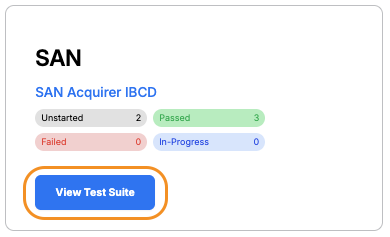
- Select the test case to validate and click on the title.

2.2 Submit RRN
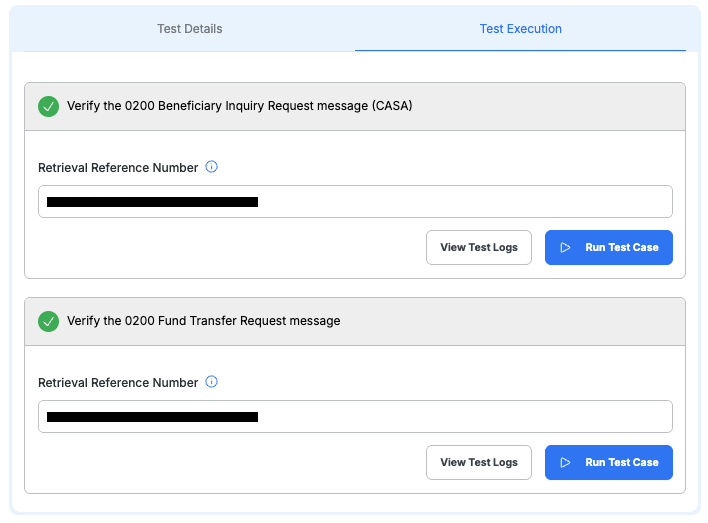
- Click the Test Execution tab - you should see 2 steps
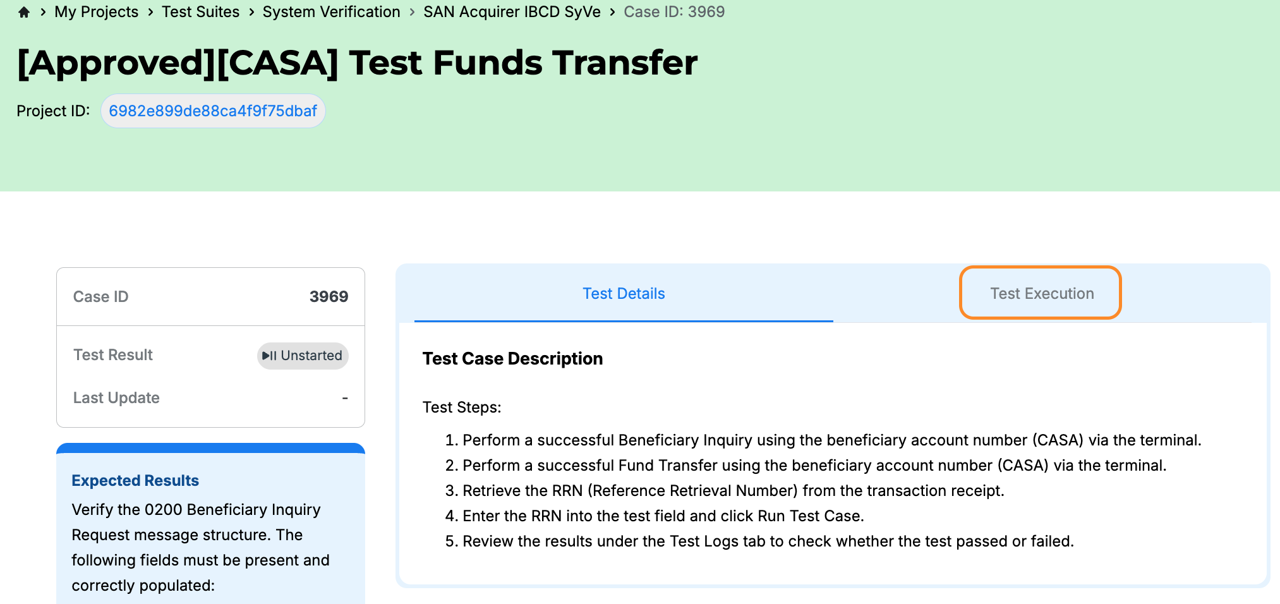
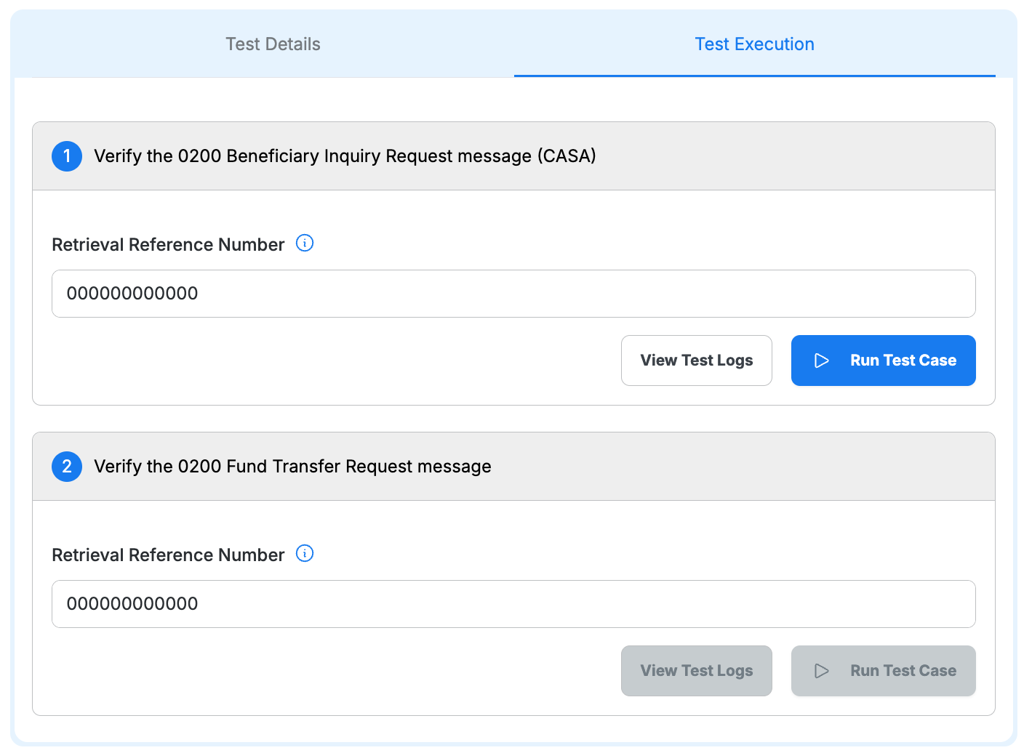
Step 1 - Submit Beneficiary Inquiry RRN
Enter Beneficiary Inquiry RRN from your own system in Step 1 field
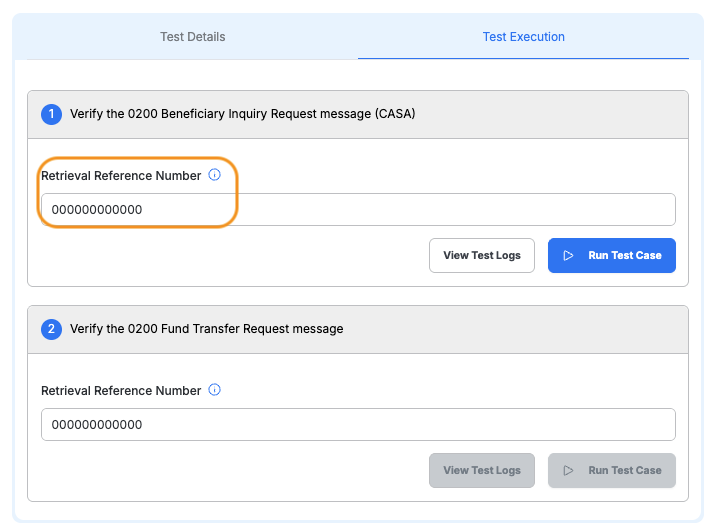
- Click "Run Test Case" for Step 1
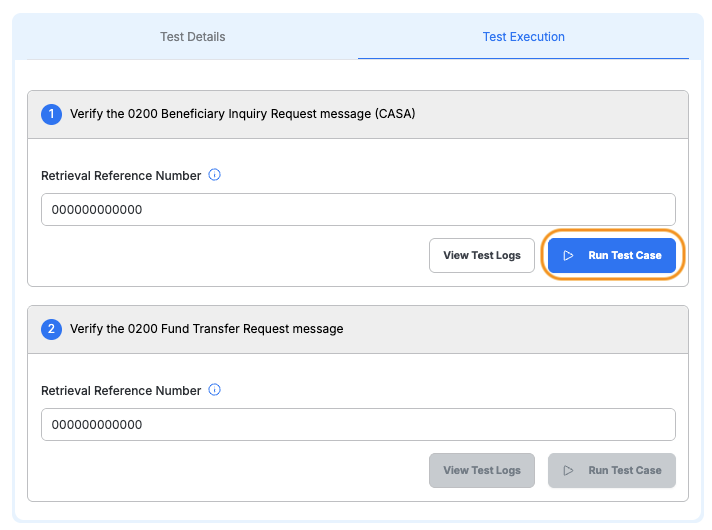
- Wait for Step 1 to pass
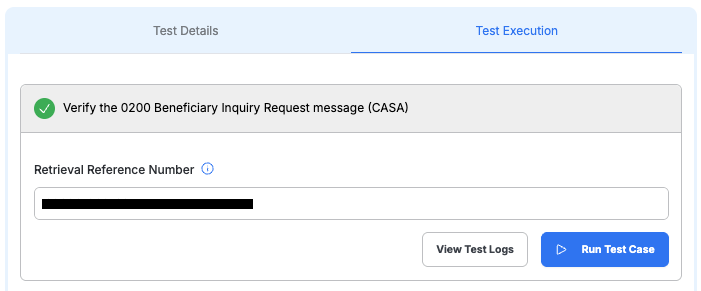
Important
Step 2 cannot be run until Step 1 passes
Step 2 - Submit IBCD Transaction RRN:
Enter IBCD Transaction RRN from receipt in Step 2 field
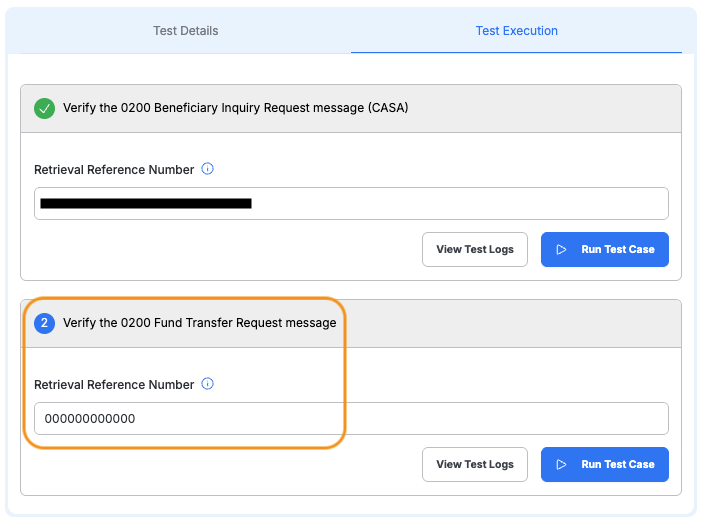
- Click "Run Test Case" for Step 2
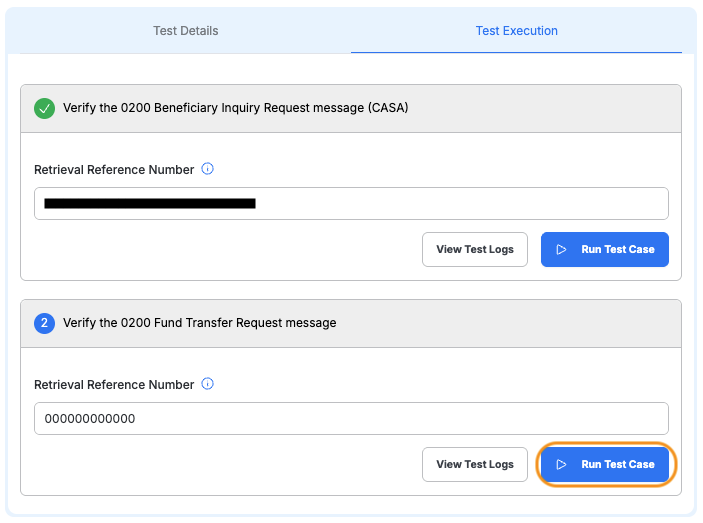
- Verify both steps show Passed
2.3 Review Results
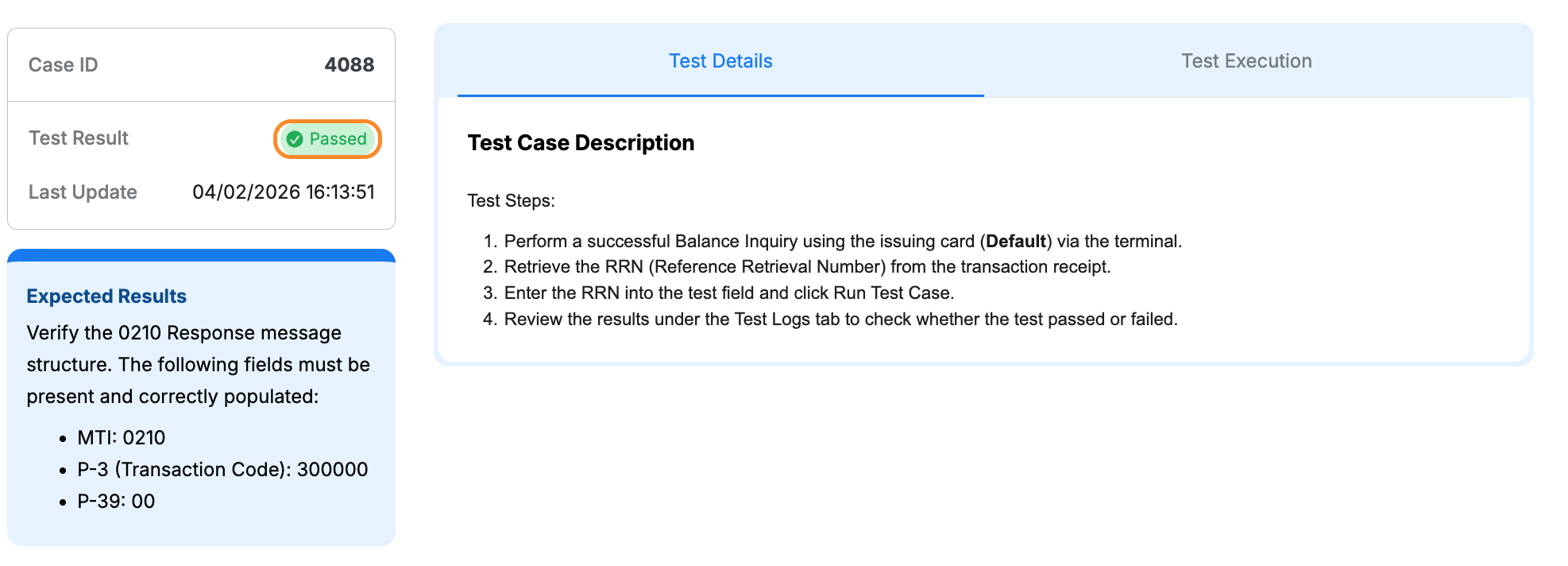
- Passed: Status badge displays a green Passed label
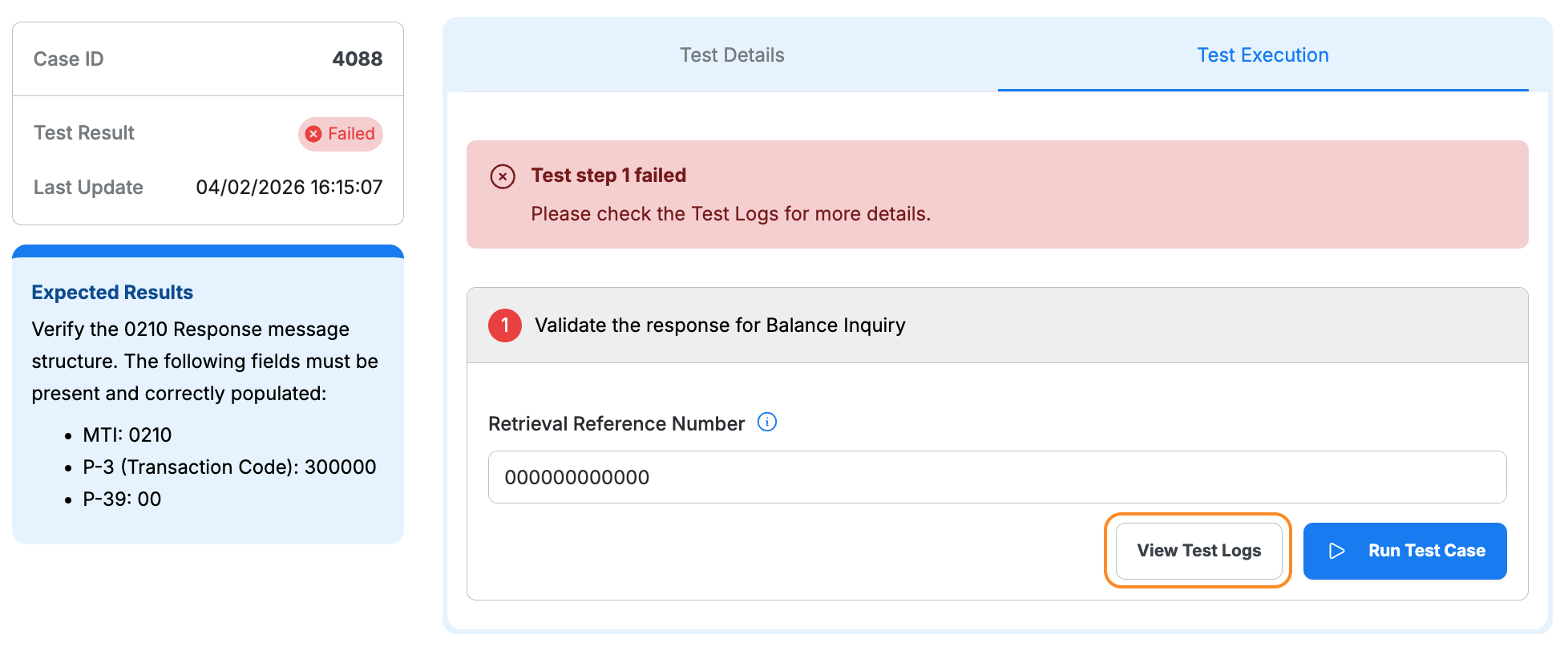
- Failed: Click View Test Logs to identify the issue and error details
Step 3: Complete All Test Cases
- Repeat Step 1 and Step 2 for all test cases
- Ensure all test cases show Passed status
- Review Test Logs for any failures