Interbank Cash Deposit (IBCD) – Issuer / Beneficiary
This guide provides step-by-step instructions for Issuer / Beneficiary institutions to test Interbank Cash Deposit (IBCD) transactions using PayNet-provided terminals and the Developer Portal.
Who should use this: Banks, Non-Banks, TPA, EMI, Digital Banks receiving cash deposits
Prerequisites
| Item | Provider |
|---|---|
| PayNet Terminal | PayNet |
| Login Credentials | PayNet |
| Beneficiary Account Number | Your Organization |
| Developer Portal Access | PayNet |
| FIID | Your Organization |
Step 1: Execute Transaction on PayNet Terminal
1.1 Terminal Login
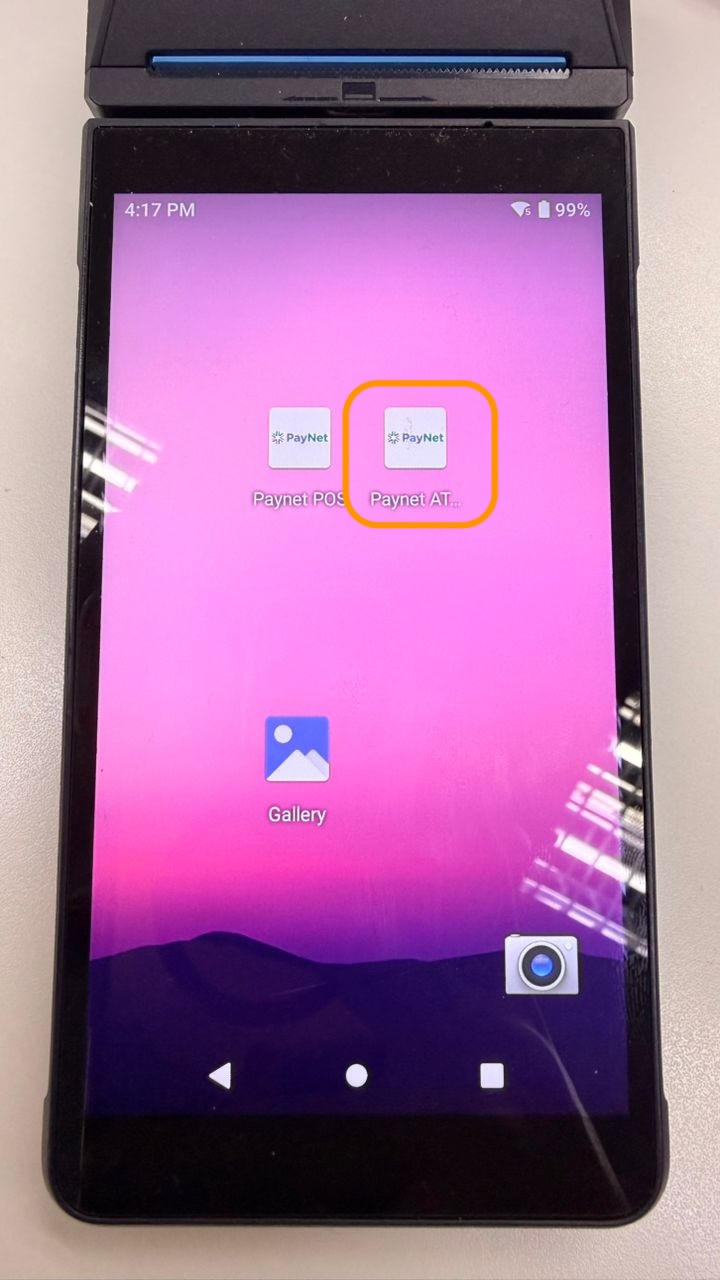
- Open PayNet ATM application
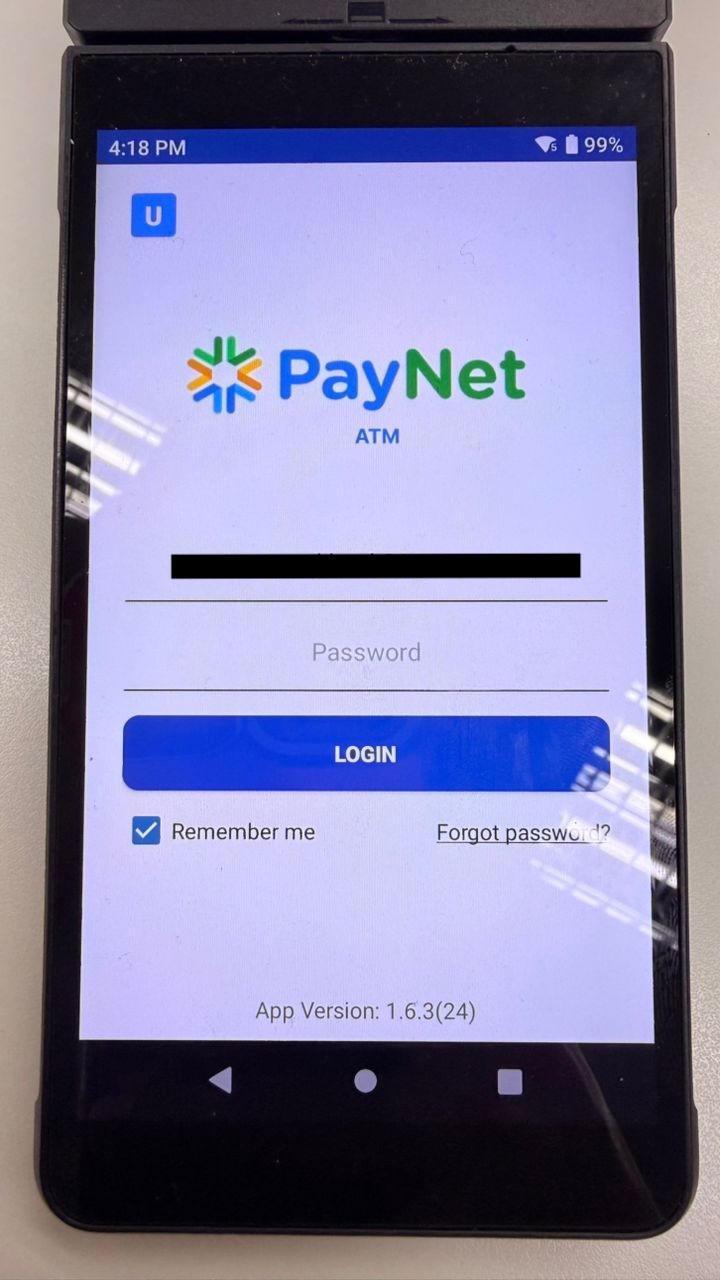
- Enter Email and Password provided by PayNet
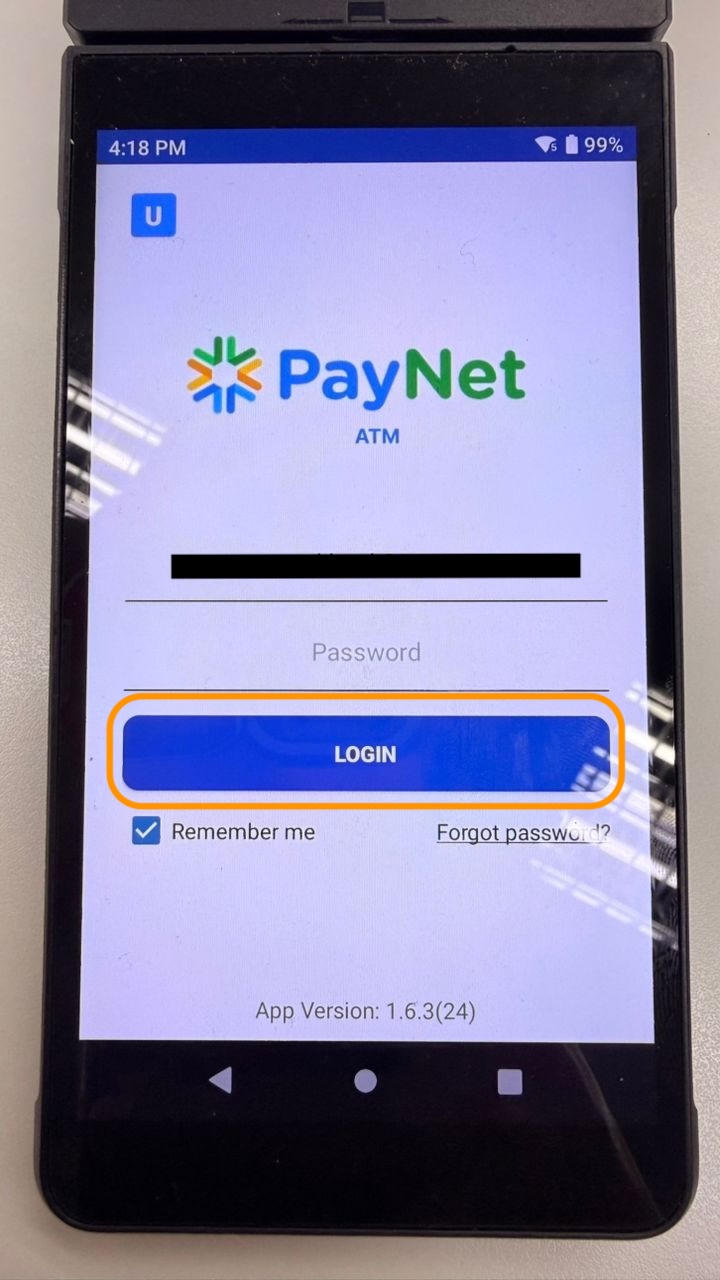
- Click Login
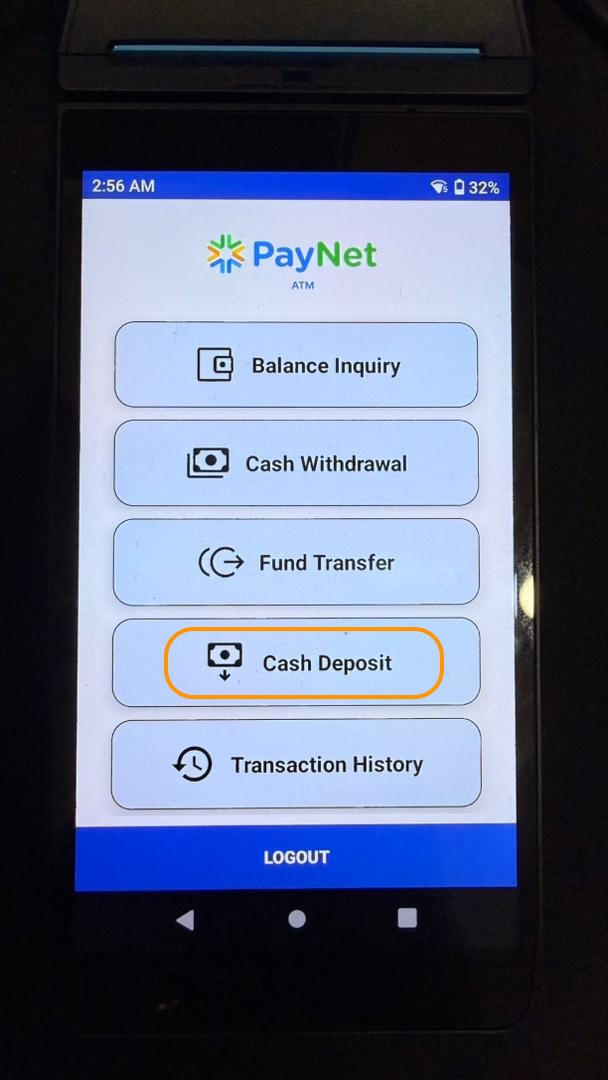
1.2 Navigate to Cash Deposit
- From the main menu, click Cash Deposit
1.3 Select Beneficiary Bank
- Scroll through the bank list
- Find and select your own organization bank
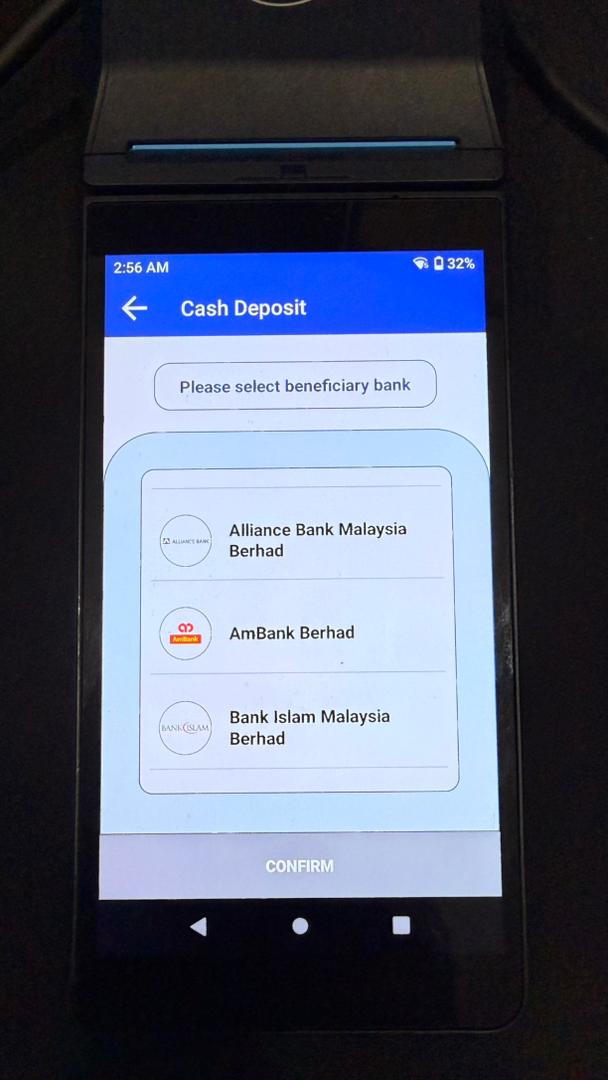
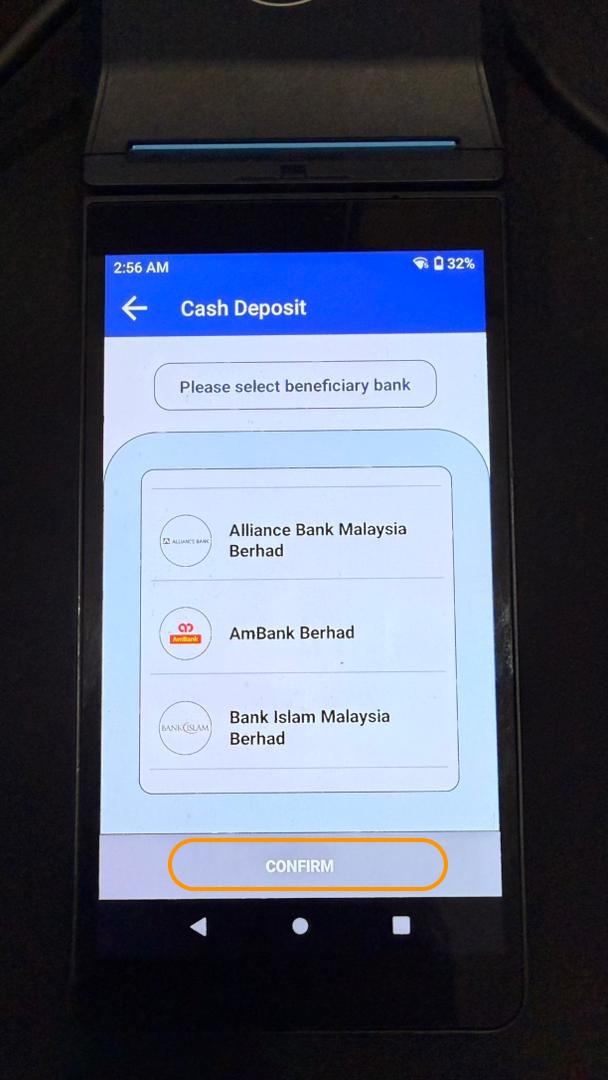
- Click Confirm
1.4 Select Account Type
- Choose the account type based on your test case (Default, Credit Card, Loan Account):
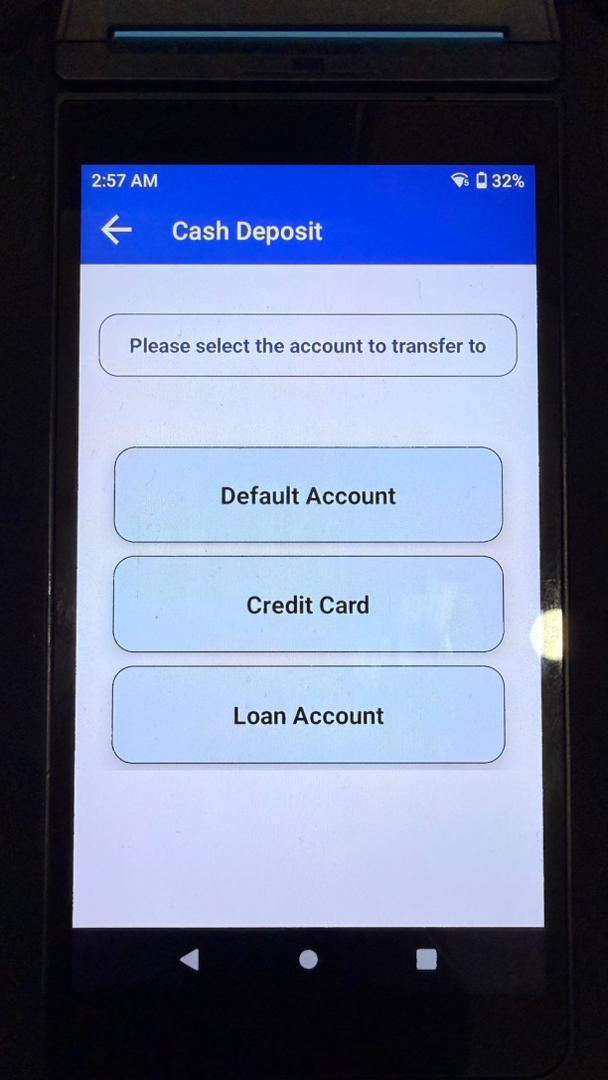
- Selection is reflected in P-3 data element
1.5 Enter Beneficiary Account
- Enter beneficiary account number from your organization
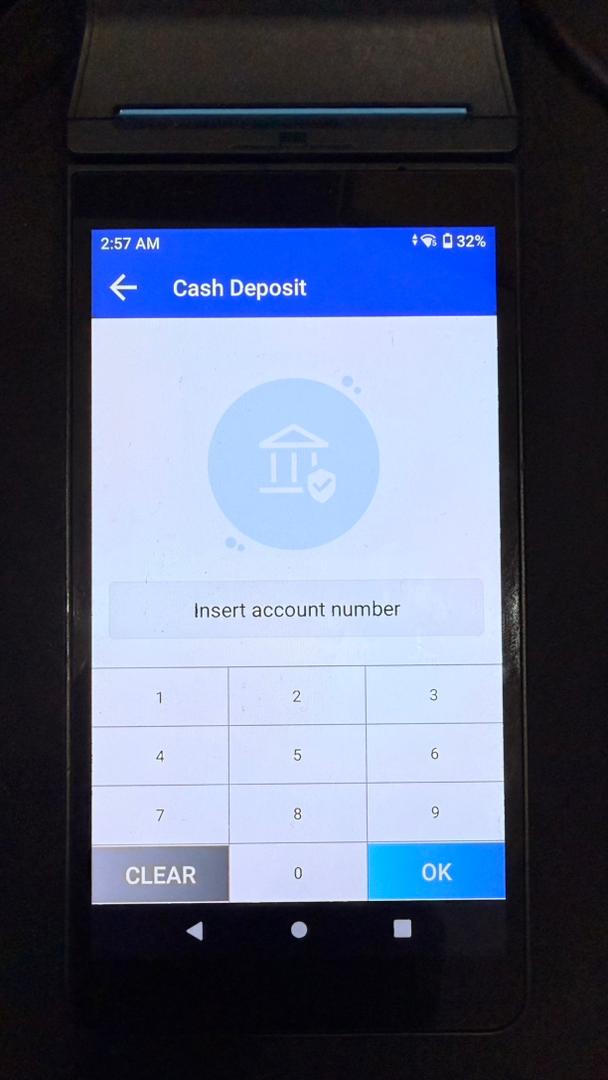
- Click OK
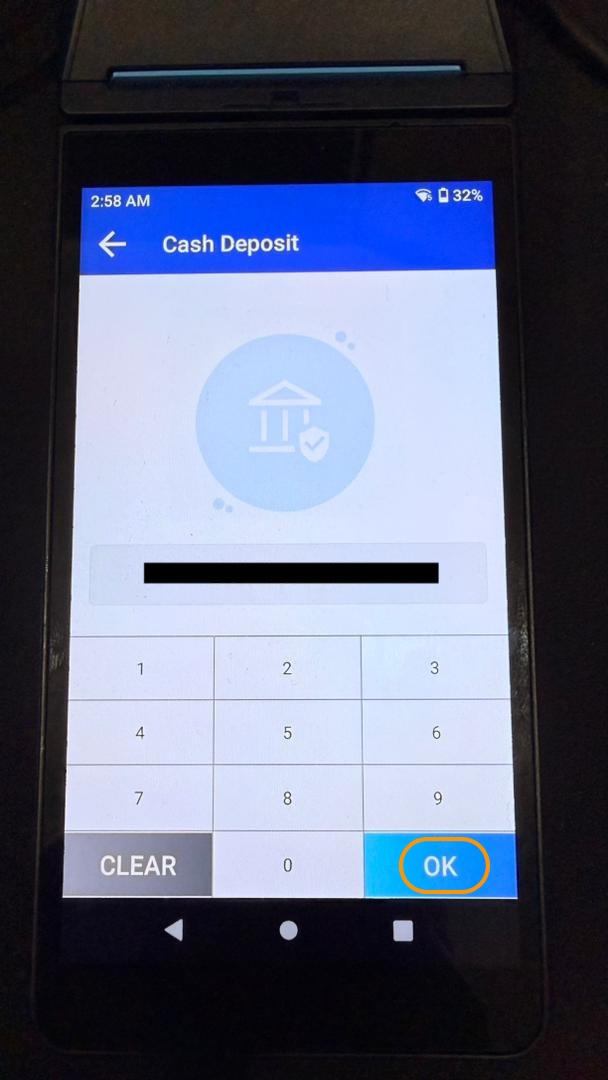
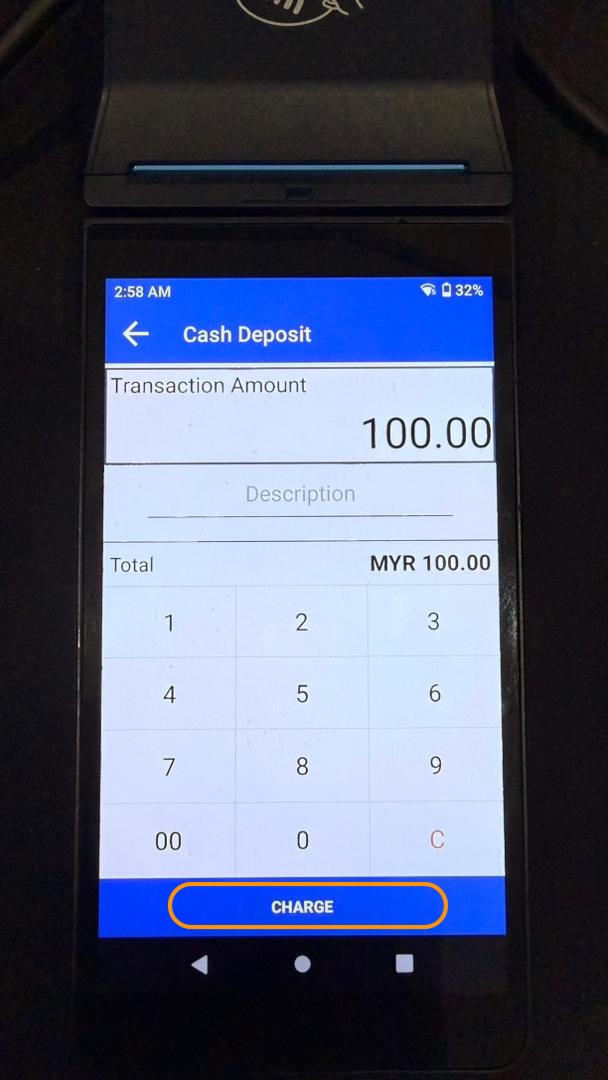
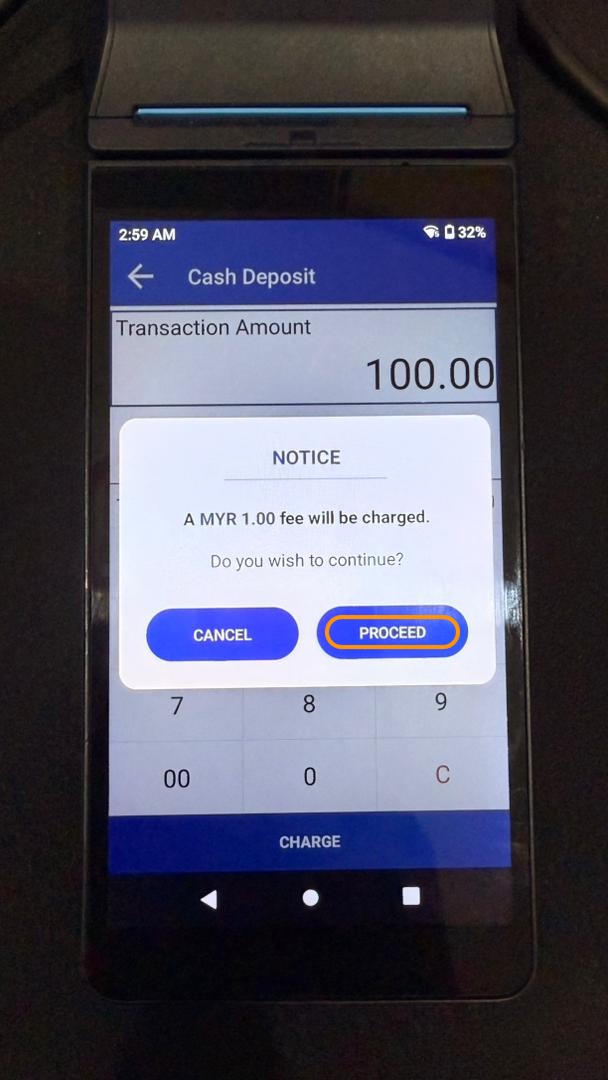
1.6 Enter Deposit Amount
- Enter test amount (e.g. RM 100.00)
- Click Charge and Proceed
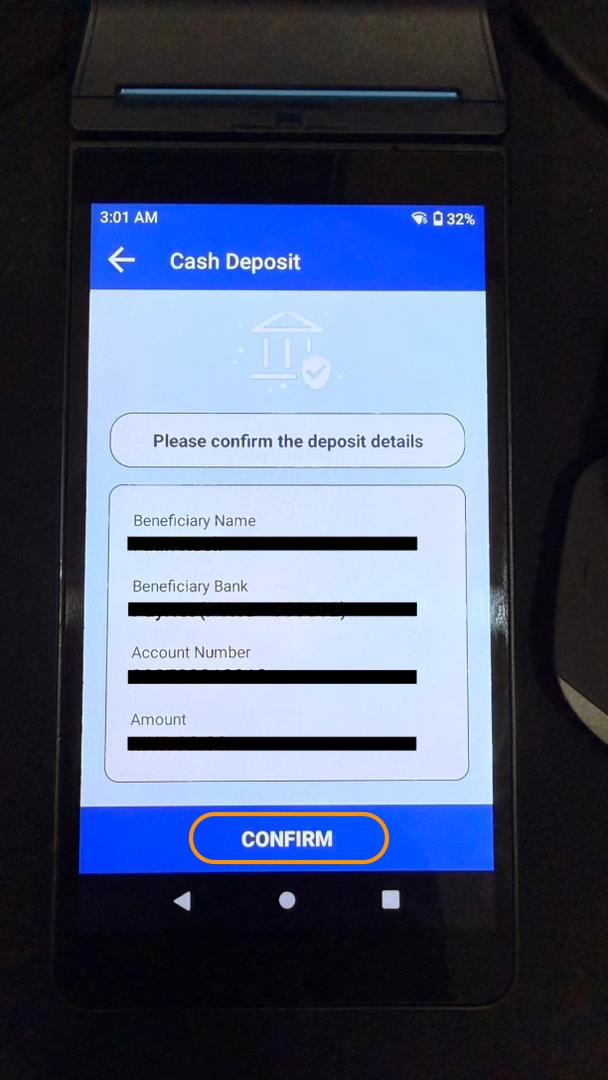
1.7 Beneficiary Inquiry
- System performs beneficiary inquiry
- Review beneficiary details:
- Beneficiary Name
- Beneficiary Bank
- Account Number
- Amount
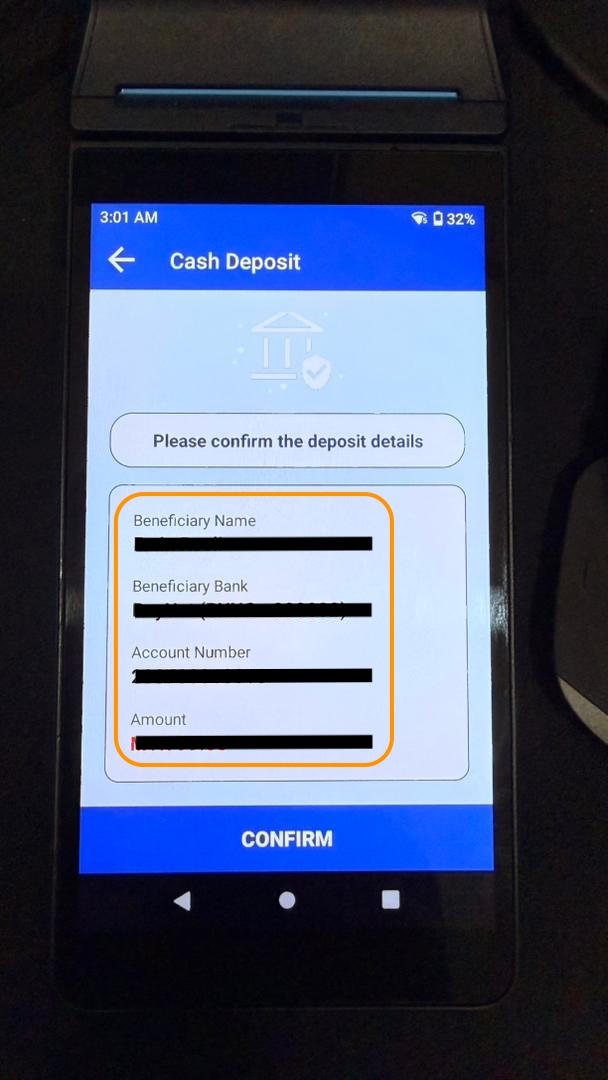
- If details are correct, click Confirm
1.8 Complete Transaction
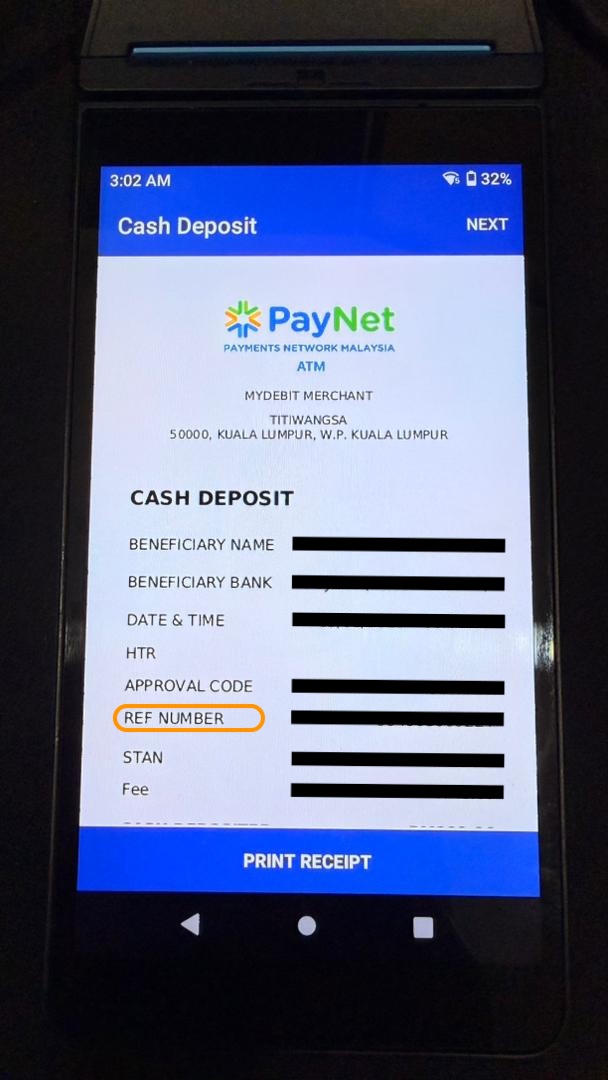
- Transaction is executed
- Retrieve receipt with IBCD Transaction RRN
Important
Two RRNs are generated:
- Beneficiary Inquiry RRN (Step 1) - Obtained from your own system
- IBCD Transaction RRN (Step 2) - Obtained from receipt
Step 2: Submit Test Case in Developer Portal
2.1 Navigate to Test Case
- Return to PayNet Developer Portal
- Open IBCD Issuer / Beneficiary test suite
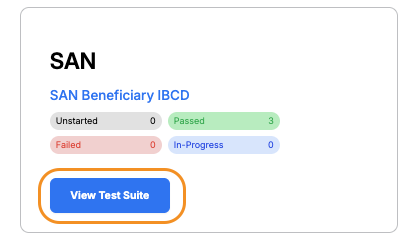
- Select the test case matching your transaction

2.2 Multi-Step Execution
- Click the Test Execution tab
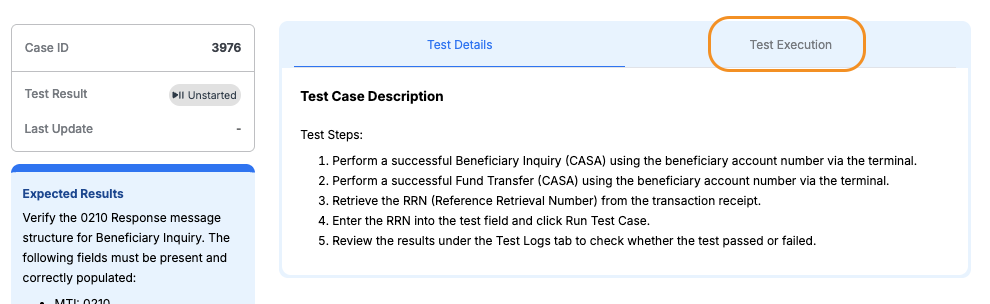
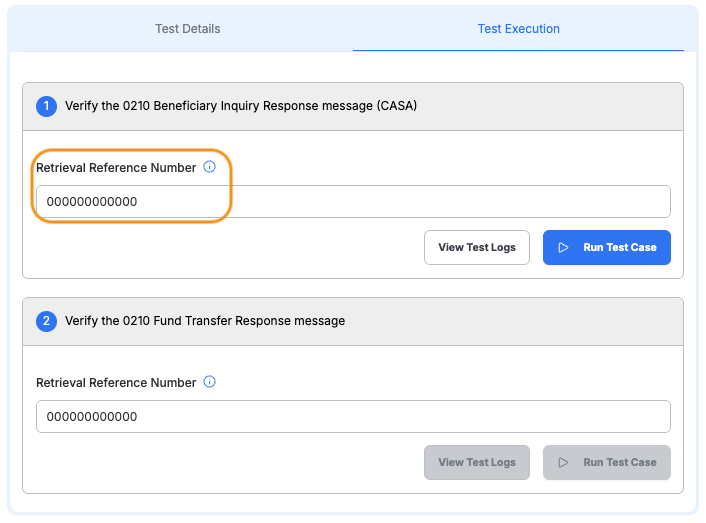
- Enter Beneficiary Inquiry RRN from your own system in Step 1 field
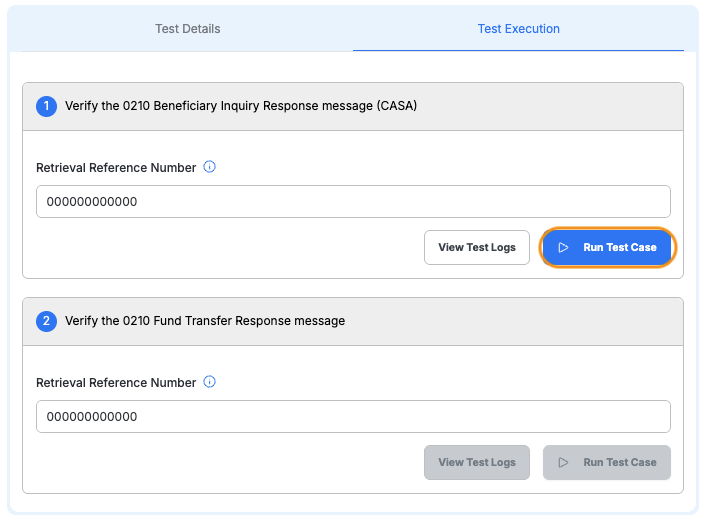
- Click Run Test Case for Step 1
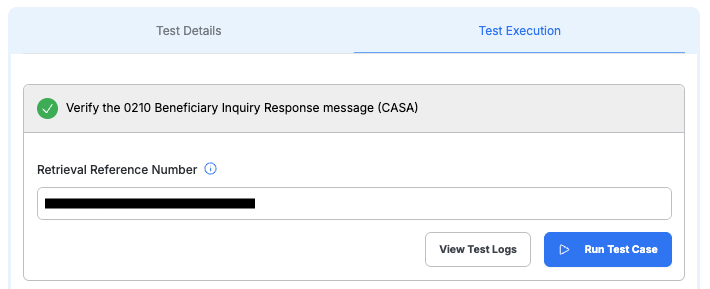
- Wait for Step 1 to show Passed
Note
Step 2 is enabled only after Step 1 passes.
- Enter IBCD Transaction RRN in Step 2 field
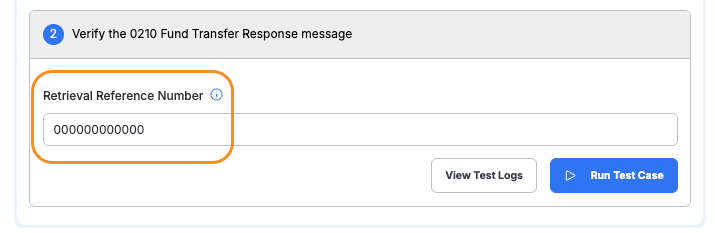
- Click Run Test Case for Step 2
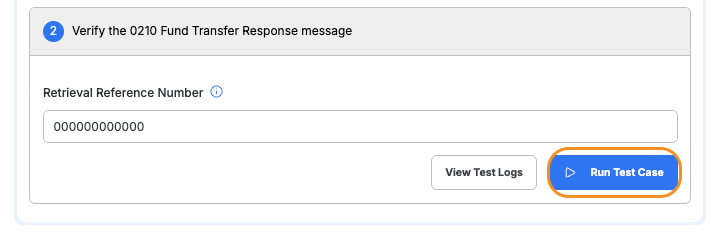
- Verify both steps show Passed
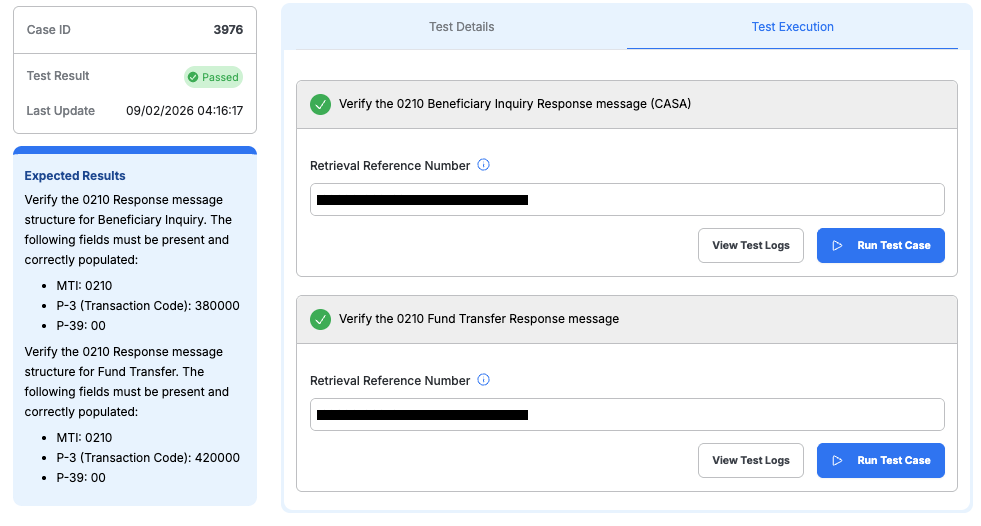
2.3 Review Results
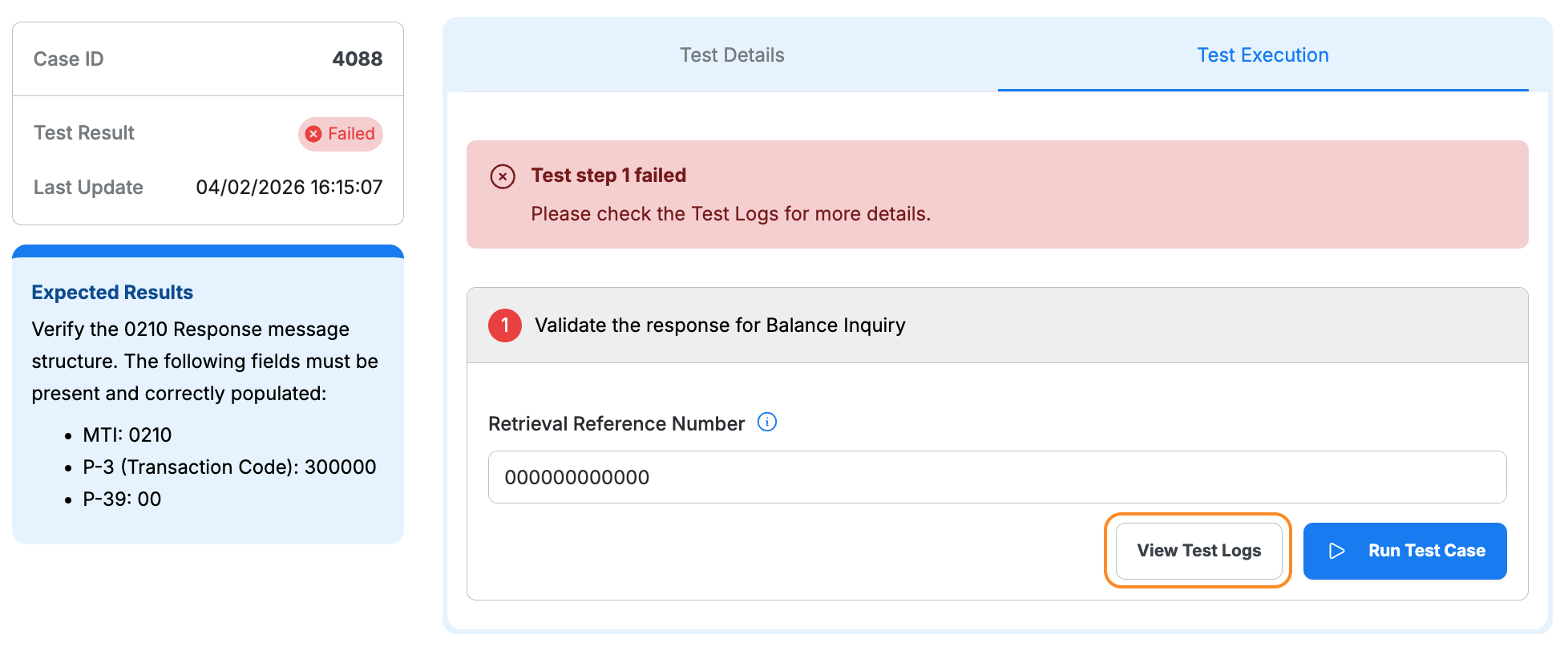
- Passed: Status badge displays a green Passed label
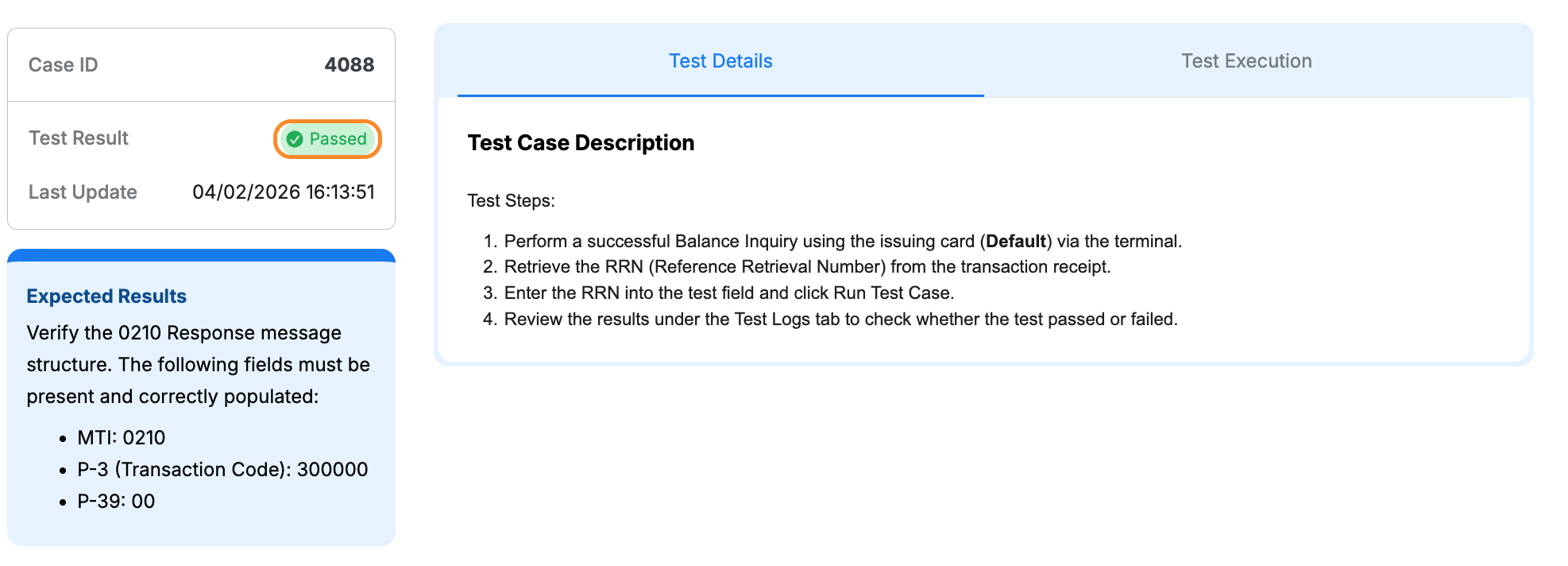
- Failed: Click View Test Logs to identify the issue and error details
Step 3: Complete All Test Cases
- Repeat Step 1 and Step 2 for each test case
- Complete all account type variations (Default, Saving, Current, Credit Card, Loan)
- Ensure all test cases show Passed status