IBFT4 – Acquirer
This guide provides step-by-step instructions for Acquirer institutions to test IBFT4 (Interbank Fund Transfer Scenario 4) transactions using your own ATM terminals and the Developer Portal.
IBFT4 simulates instant transfer scenarios where transactions are initiated from your ATM network and routed through the SAN infrastructure.
Who should use this: Banks, Non-Banks, TPA operating ATM networks as Acquirer
Prerequisites
| Item | Provider |
|---|---|
| Your Own Terminal / ATM | Your Organization |
| Test Card (BIN 9000 09XX) | PayNet |
| Beneficiary Account Number | PayNet |
| Developer Portal Access | PayNet |
| FIID | Your Organization |
Step 1: Execute Transaction on Your Terminal
1.1 Test Resources
PayNet provides:
- Test Card (BIN 9000 09XX XXXX XXXX)
- Beneficiary Account Number (test destination account)
Your organization provides:
- Your own ATM / Terminal
Use the PayNet-provided test card and beneficiary account number on your own terminal.
1.2 Interbank Fund Transfer Scenario 4 (IBFT4) Transaction
Execute an Interbank Fund Transfer transaction using your own terminal following your standard fund transfer procedures.
Ensure the following:
- Use PayNet-provided test card (BIN 9000 09XX XXXX XXXX)
- Transfer funds to PayNet-provided beneficiary account
- Match account type and amount according to test case specification
- Select Transfer to Other Bank (IBFT4 requirement)
All transaction fields must match the test case exactly.
Mismatch will cause validation failure.
Important – Two RRNs Required
You will obtain two RRNs during execution:
- Beneficiary Inquiry RRN (Step 1) → Obtained from your own system
- Fund Transfer RRN (Step 2) → Obtained from terminal receipt
Both RRNs are mandatory for test case submission.
📌 Key Transaction Details
| Step | Field | Note |
|---|---|---|
| Account From | Saving / Current | Must match test case |
| Transfer Type | Transfer to Other Bank | IBFT4 requirement |
| Beneficiary Bank | PayNet Bank (Test Bank) | From list |
| Account To | Per test case | Check test case details |
| Beneficiary Account | PayNet provided | From PayNet |
| Card | PayNet provided (BIN 9000 09XX) | From PayNet |
Step 2: Submit Test Case in Developer Portal
2.1 Navigate to Test Case
- Return to PayNet Developer Portal
- Open SAN Instant Transfer test suite
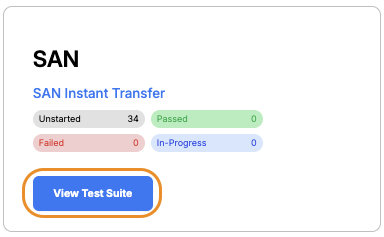
- Scroll to Scenario 4 – ACQ
- Click the relevant test case title

2.2 Submit RRNs (Two-Step Validation)
You will see 2 steps in the Test Execution tab.
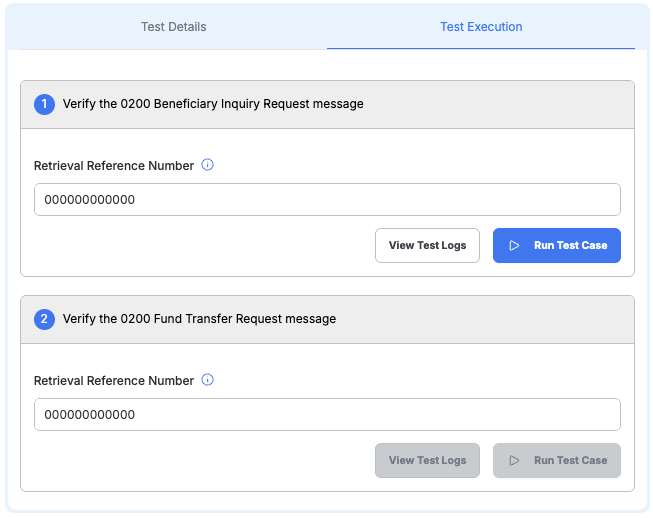
Step 1 – Submit Beneficiary Inquiry RRN
- Enter Beneficiary Inquiry RRN (from your own system) in Step 1 field
- Click Run Test Case for Step 1
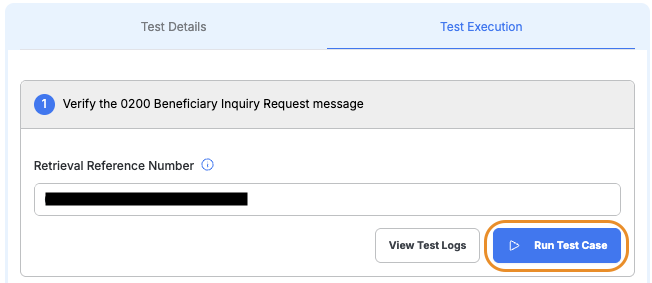
- Wait for validation
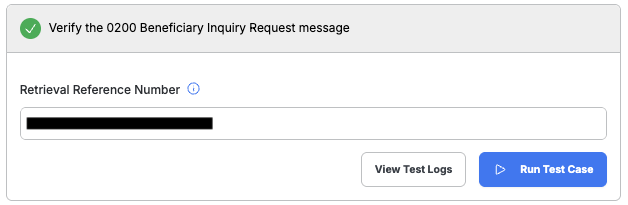
You must complete and pass Step 1 first, otherwise Step 2 cannot be run.
Step 2 – Submit Fund Transfer RRN
- After Step 1 shows Passed
- Enter Fund Transfer RRN (from terminal receipt) in Step 2 field
- Click Run Test Case for Step 2
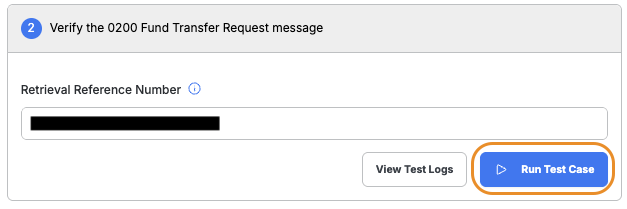
- Wait for validation
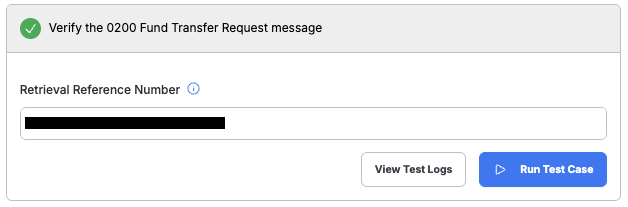
This is a multi-step validation.
Step 2 is only enabled after Step 1 passes successfully.
2.3 Review Results
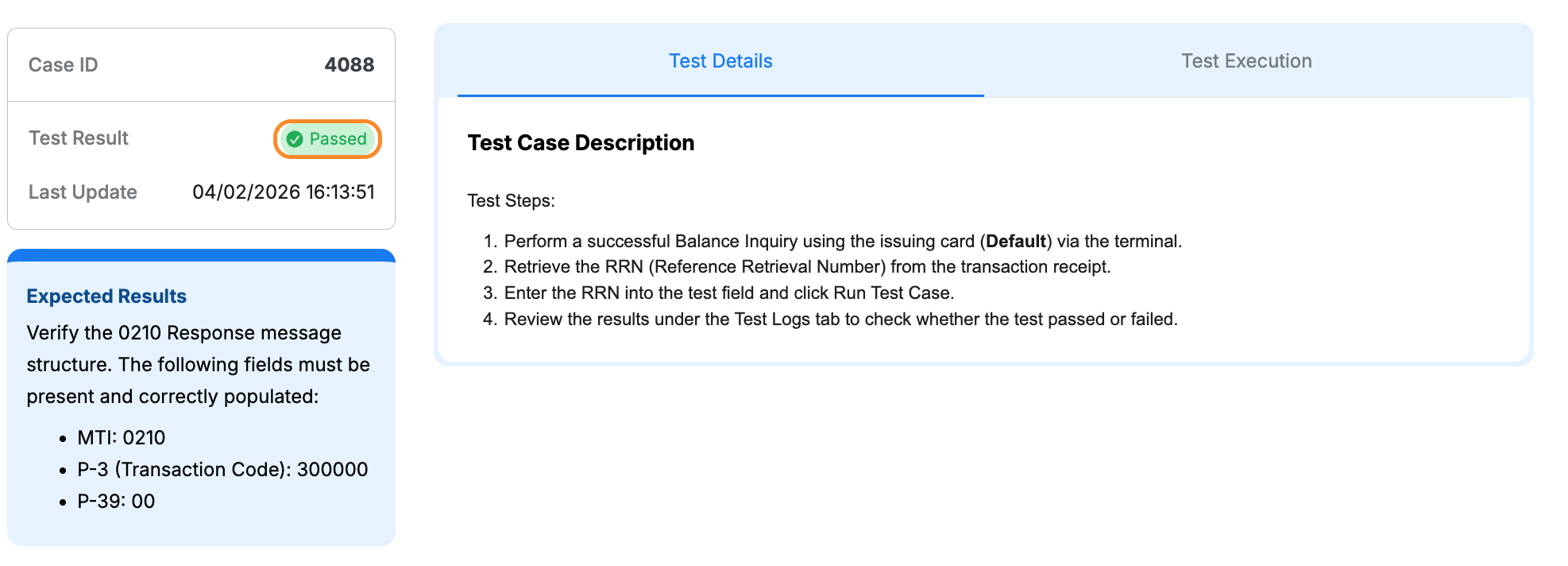
Passed: Status badge displays a green Passed label
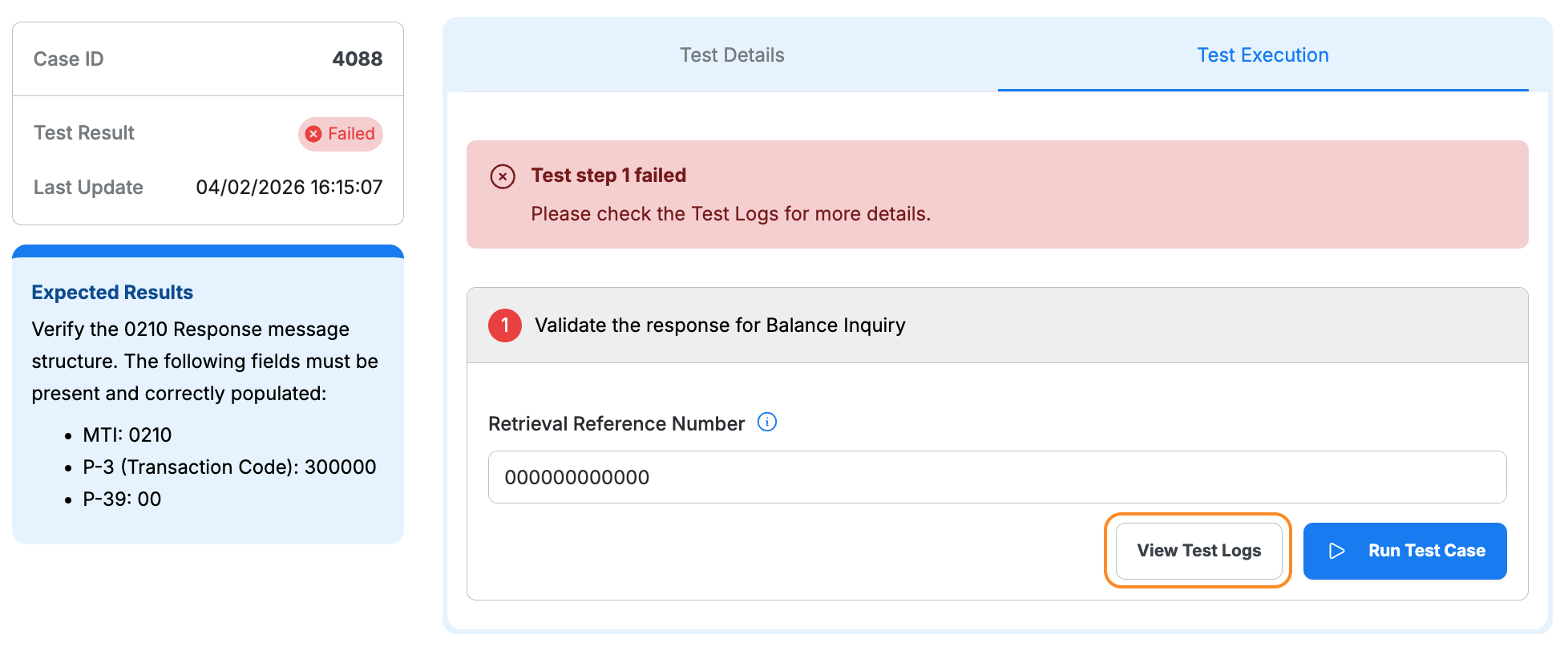
Failed: Click View Test Logs to identify the issue and error details
Step 3: Complete All Test Cases
Completion Checklist
- Repeat Steps 1–2 for each test case in Scenario 4 – ACQ
- Complete all account type combinations and amount ranges specified
- Ensure all test cases show Passed
- Review test logs for any failures