IBFT2 – Issuer
This guide provides step-by-step instructions for Issuer institutions to test IBFT2 (Interbank Fund Transfer Scenario 2) transactions using PayNet-provided terminals and the Developer Portal.
IBFT2 simulates instant transfer scenarios where customers transfer funds to other banks using the SAN network infrastructure.
Who should use this: Banks, Non-Banks, TPA, EMI, Digital Banks acting as Card Issuers
Prerequisites
| Item | Provider |
|---|---|
| PayNet Terminal | PayNet |
| Login Credentials | PayNet |
| Beneficiary Account Number | PayNet |
| Test Card (Issuing Card) | Your Organization |
| Developer Portal Access | PayNet |
| FIID | Your Organization |
Step 1: Execute Transaction on PayNet Terminal
1.1 Terminal Login
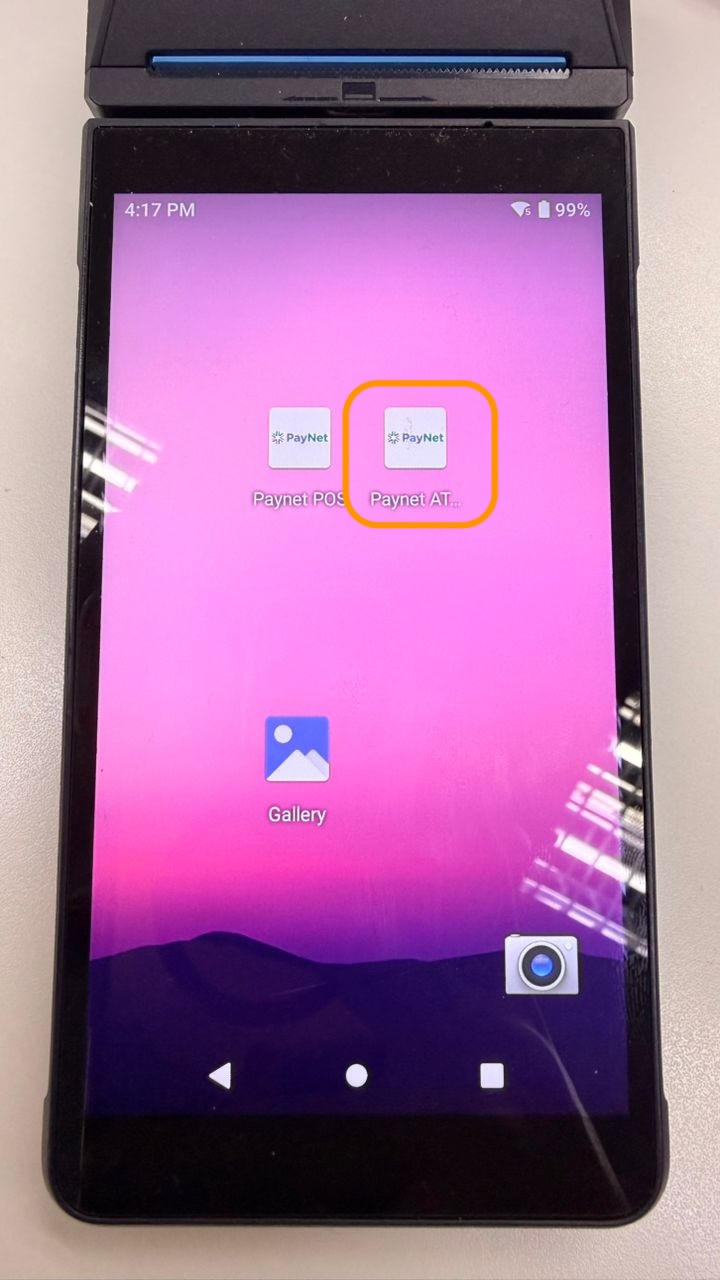
- Open PayNet ATM application
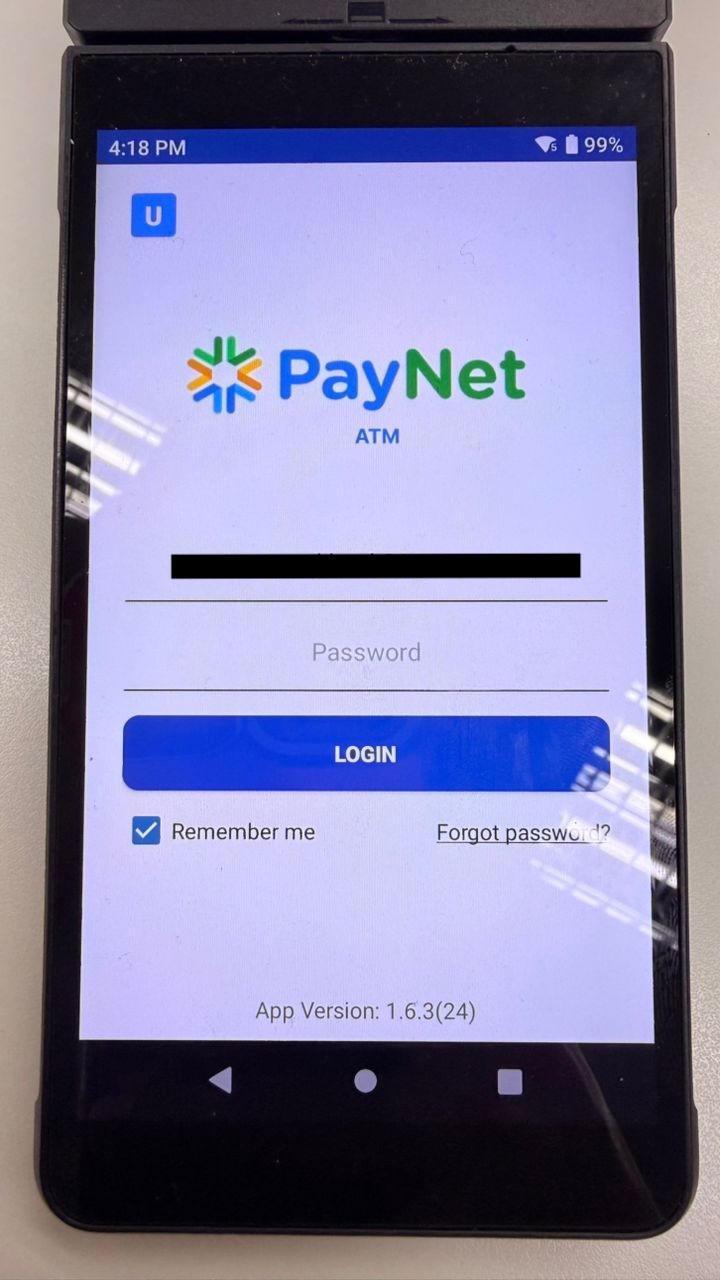
- Enter Email and Password provided by PayNet
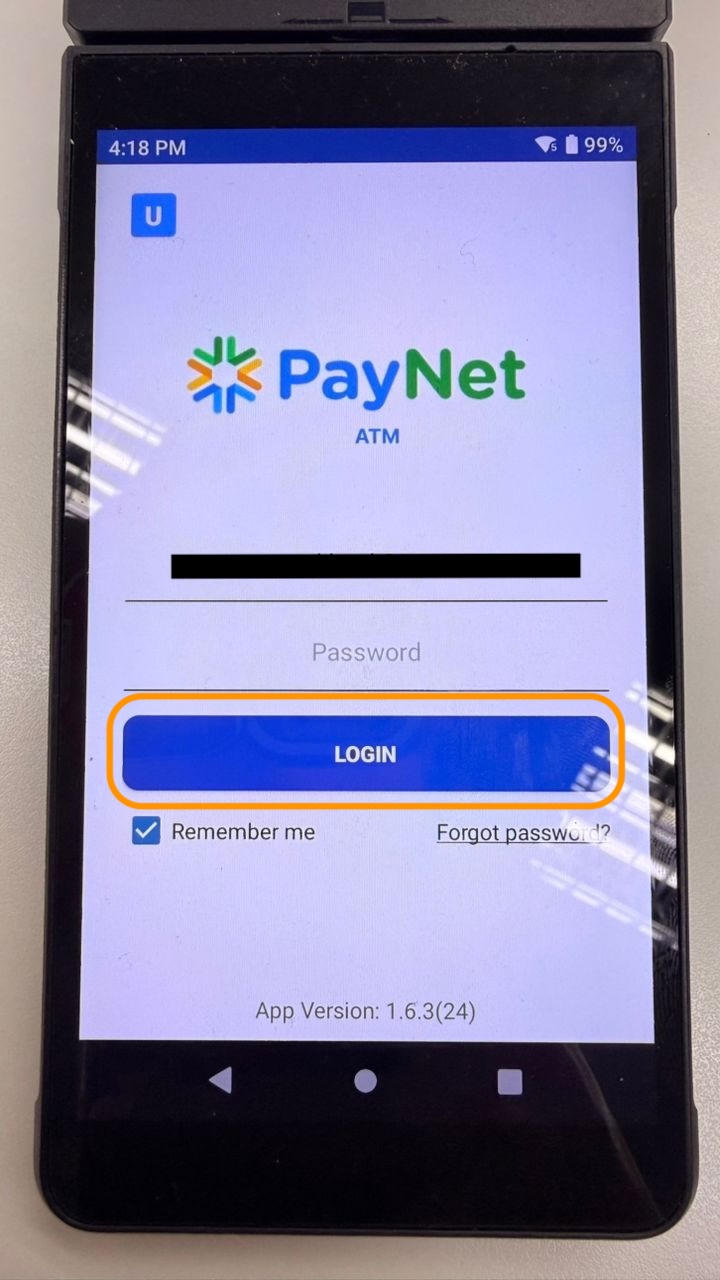
- Click Login
1.2 Interbank Fund Transfer Scenario 2 (IBFT2) Transaction
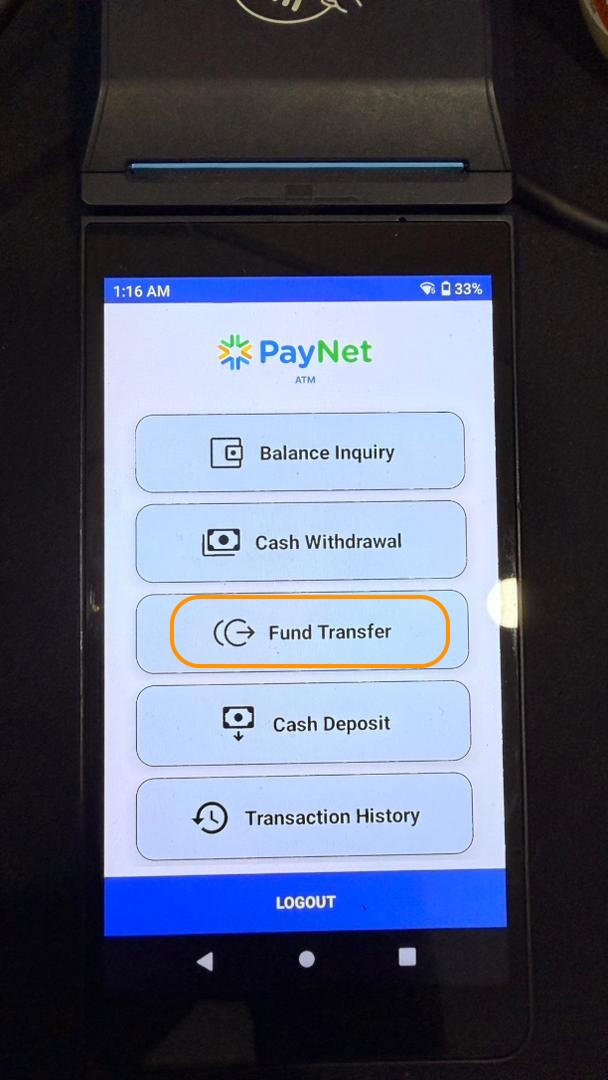
- Click “Fund Transfer”
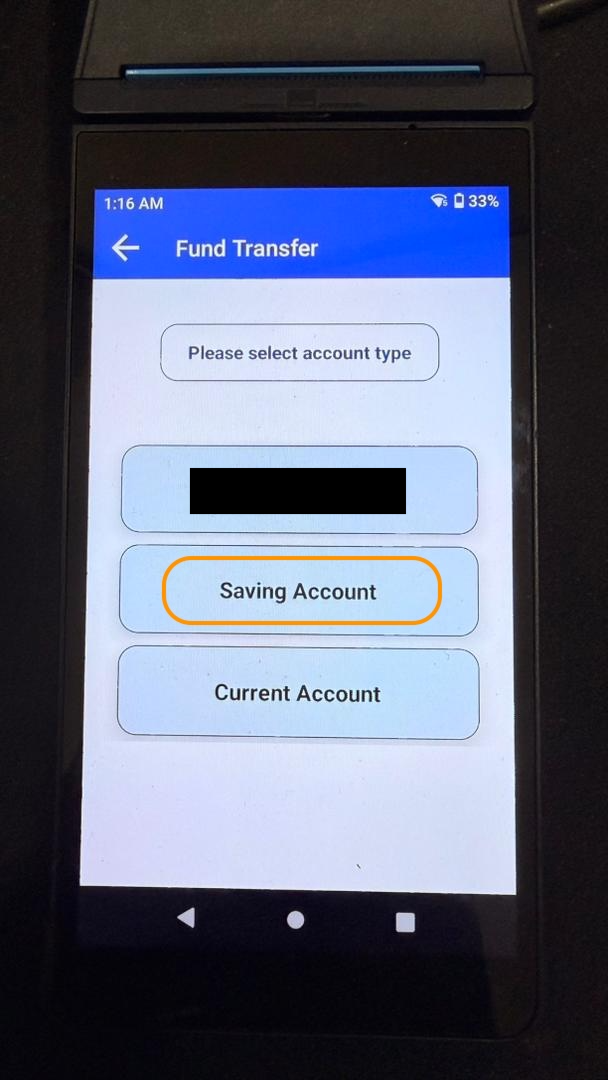
- Select Account Type to Transfer From:
- Saving
- Current
Important
Match this selection with your test case title
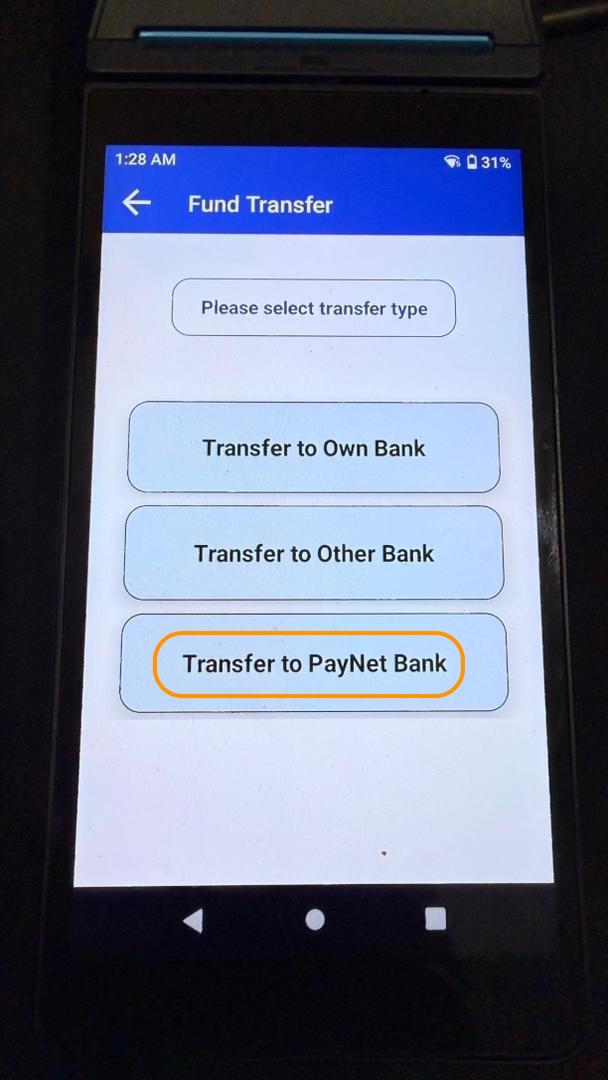
- Transfer Type screen appears → Select “Transfer to PayNet Bank” (IBFT2 requirement)
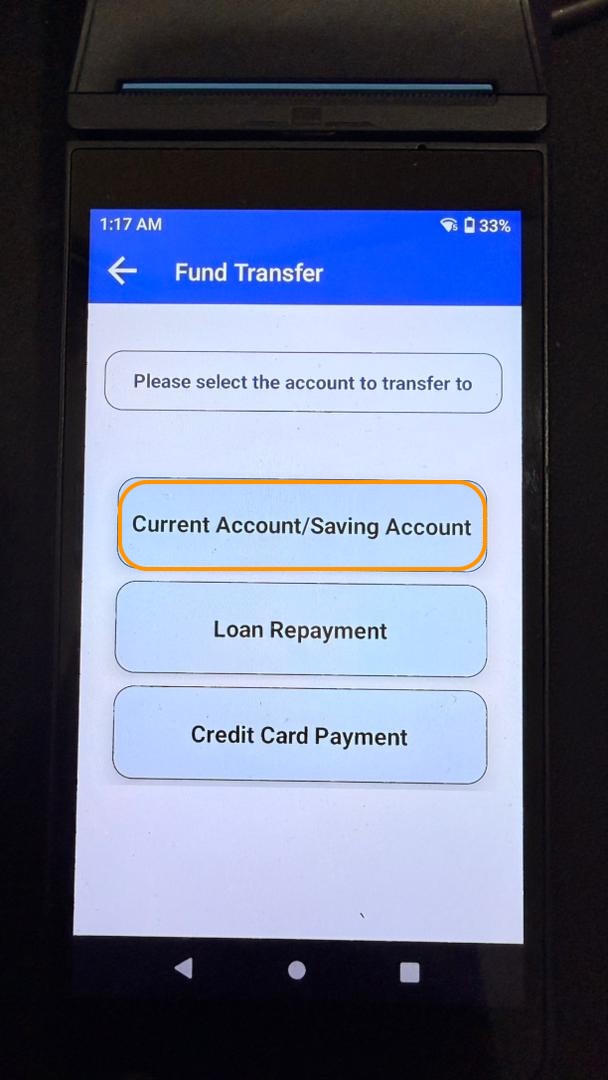
- Select Account Type to Transfer To
- Review your test case details carefully
danger
Incorrect selection will cause execution failure
- Enter Beneficiary Account Number
- Use account number provided by PayNet
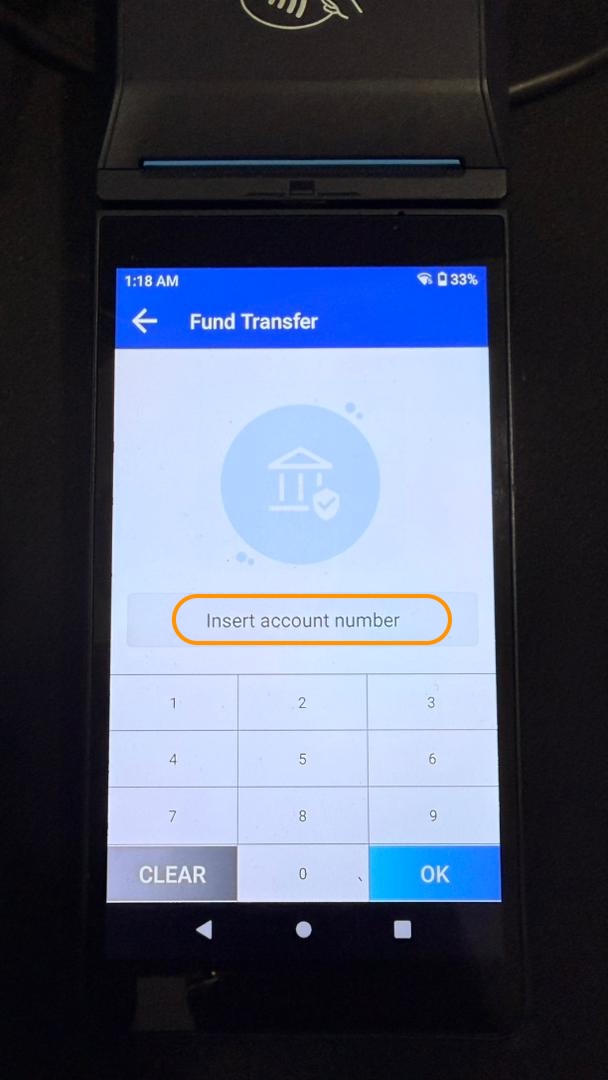
- Click “OK”
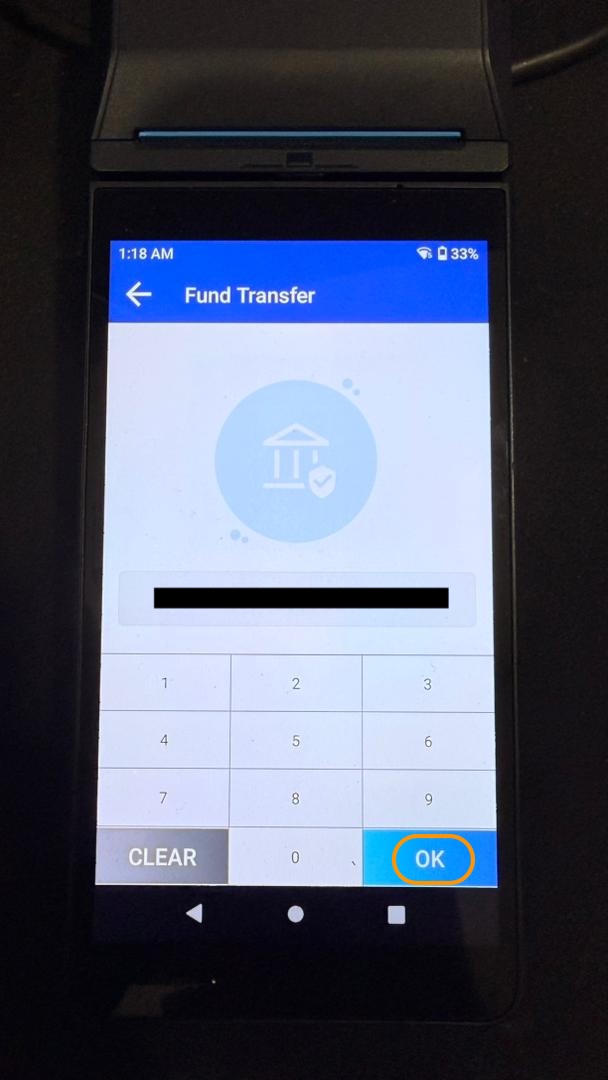
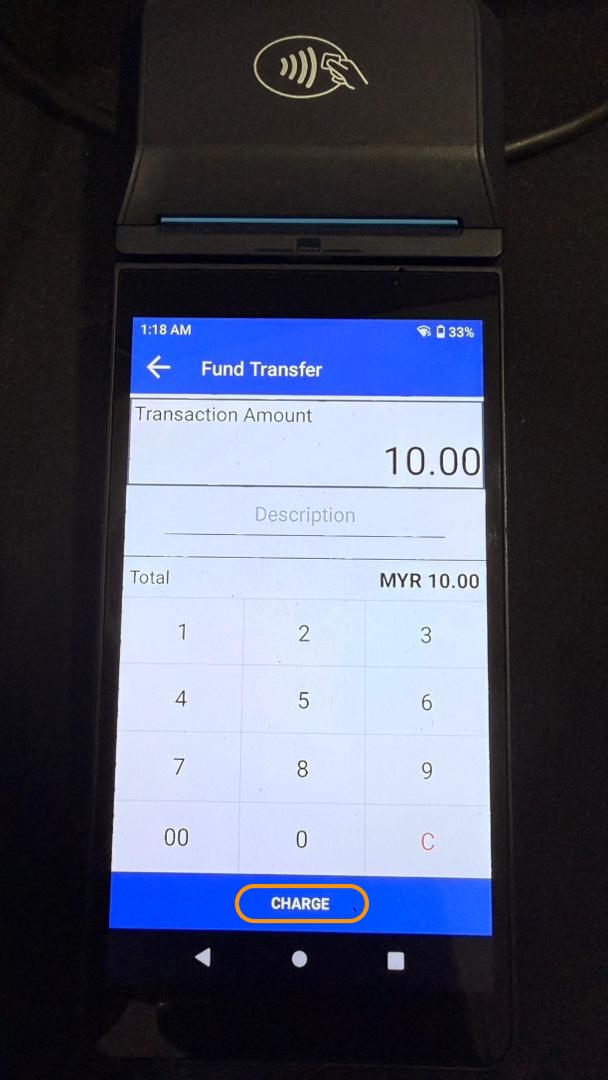
- Enter Transfer Amount
- Click “Charge”
Card Authentication
- Insert card from your organization
- Enter **PIN**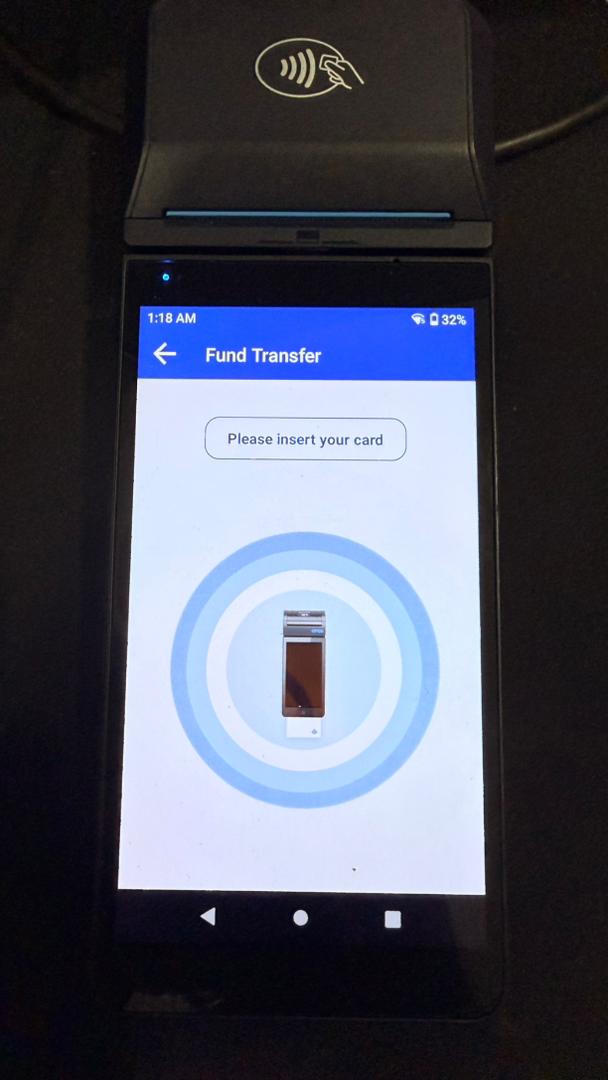 - Click **“OK”**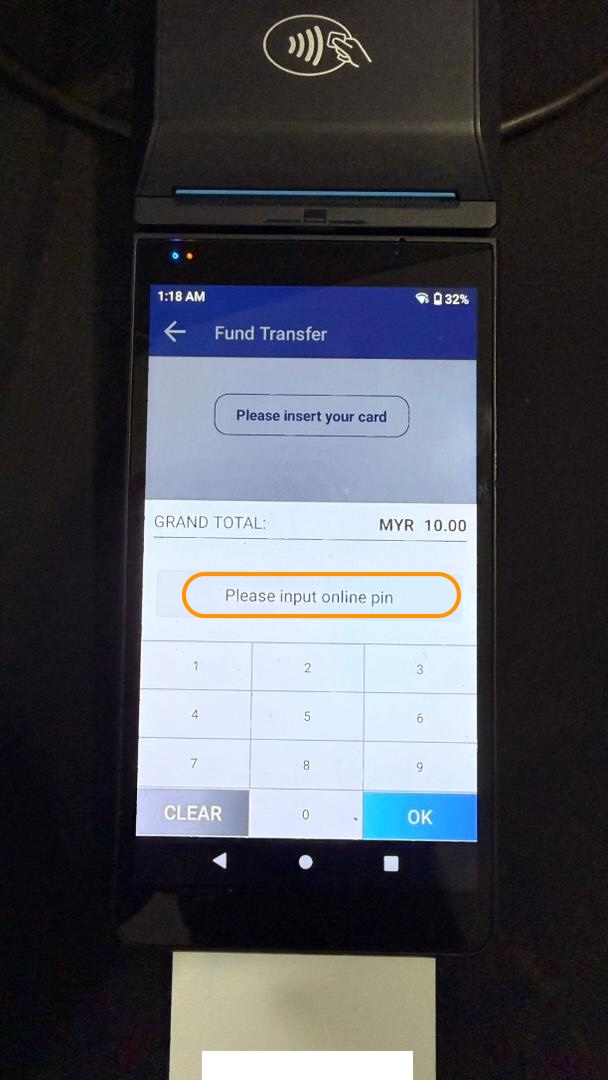
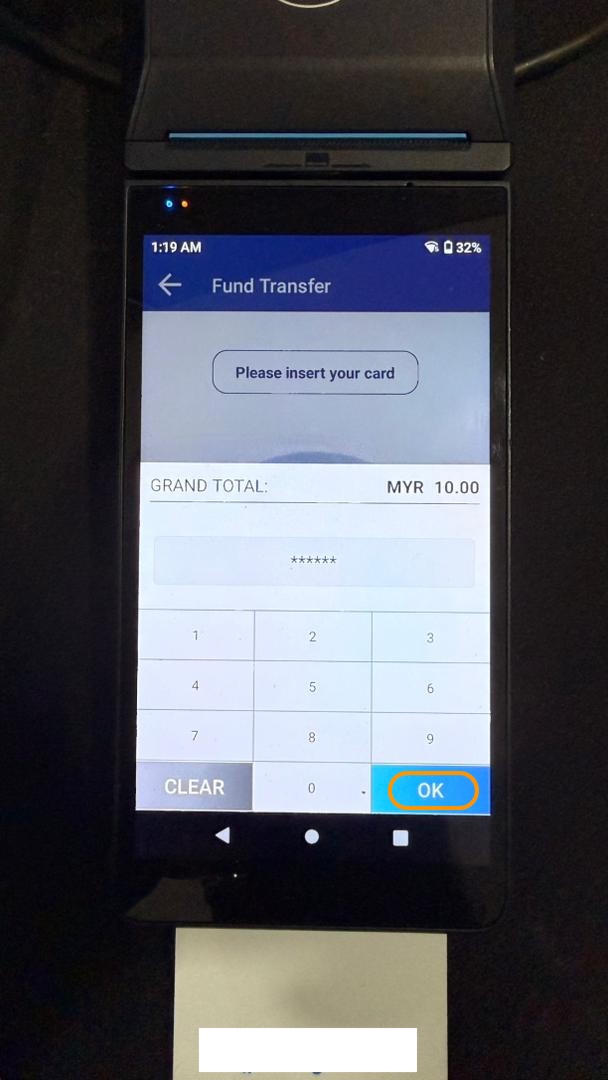
Confirm Transfer Details
- Verify all details
- Click “CONFIRM”
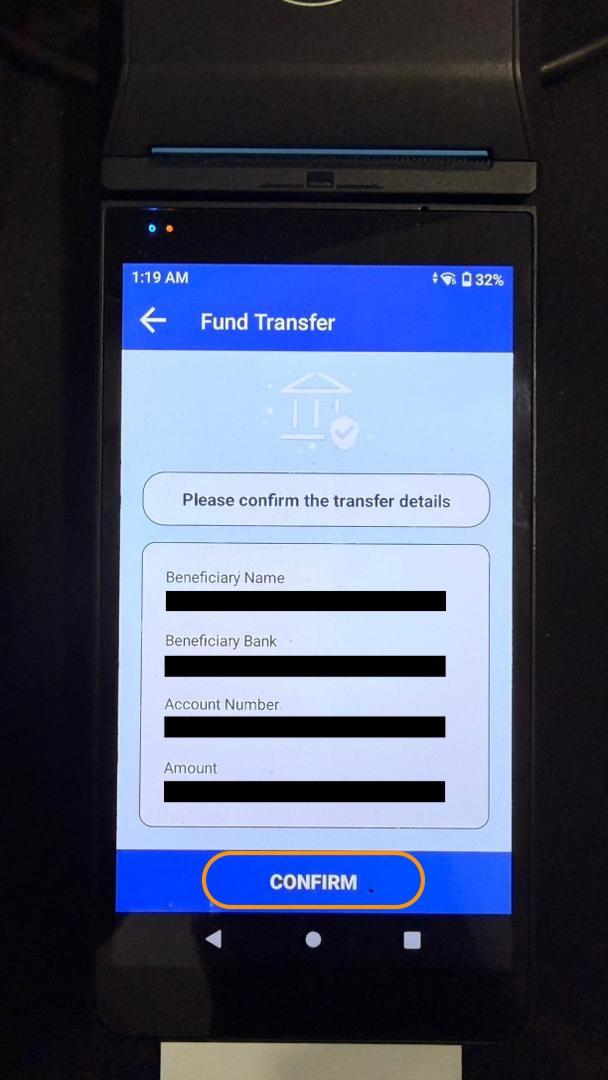
- Retrieve Receipt with RRN
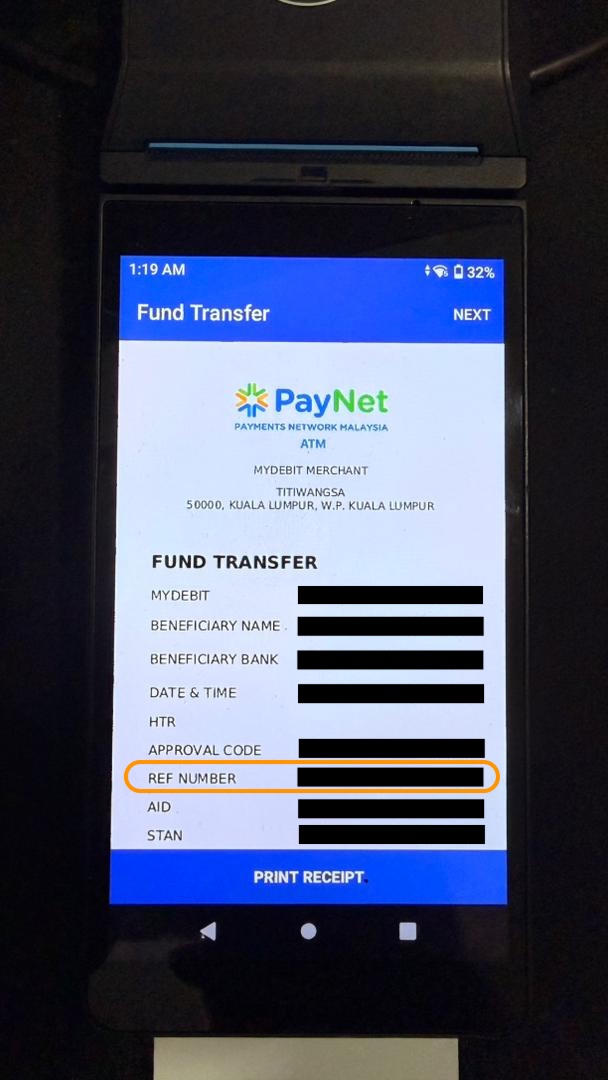
📌 Key Transaction Details
| Step | Field | Note |
|---|---|---|
| Account From | Saving / Current | Must match test case |
| Transfer Type | Transfer to PayNet Bank | IBFT2 requirement |
| Account To | Per test case | Check test case details |
| Beneficiary Account | PayNet provided | From PayNet |
| Card | Your organization card | From your institution |
Step 2: Submit Test Case in Developer Portal
2.1 Navigate to Test Case
- Return to PayNet Developer Portal
- Open SAN Instant Transfer test suite
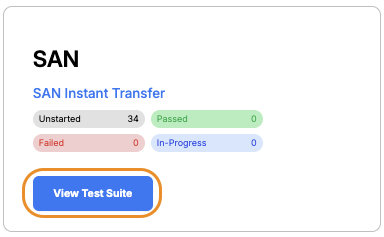
- Scroll to Scenario 2 – ISS
- Click the relevant test case title

2.2 Submit RRN
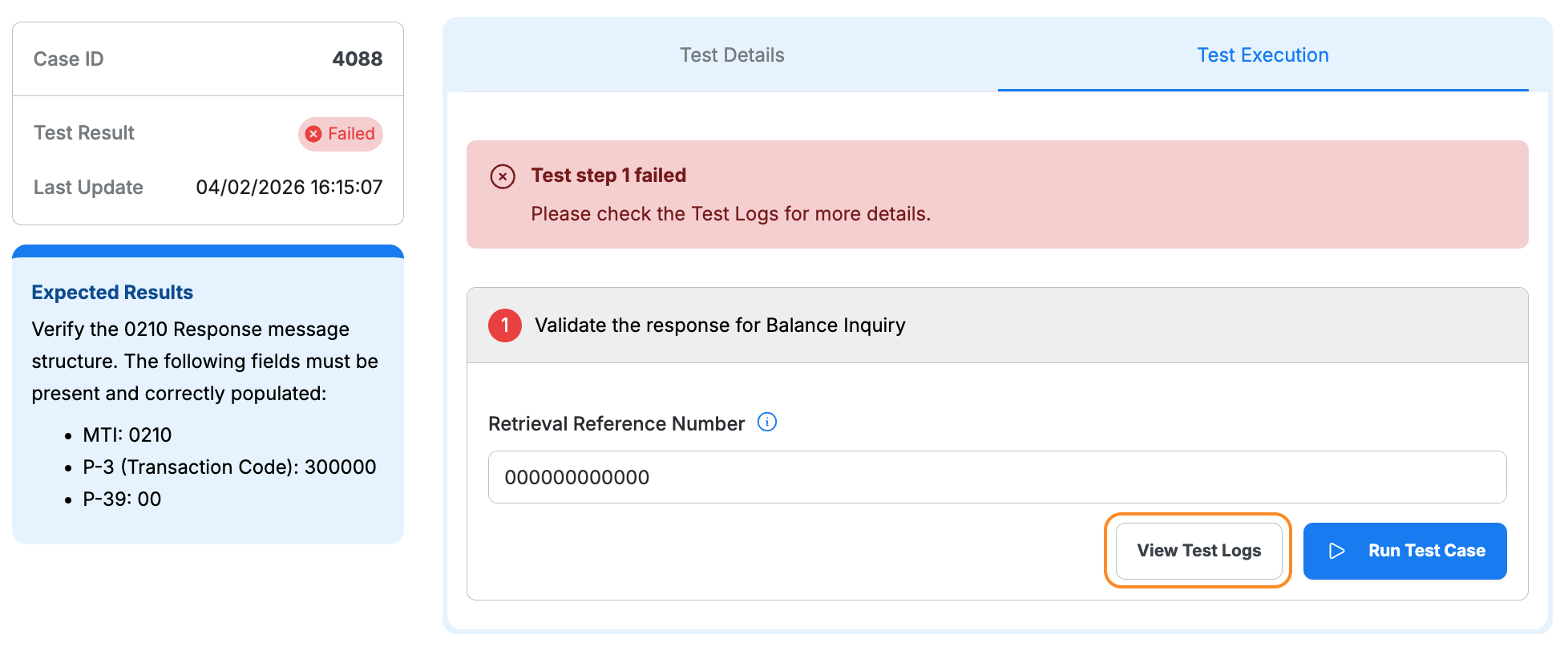
- Click “Test Execution” tab
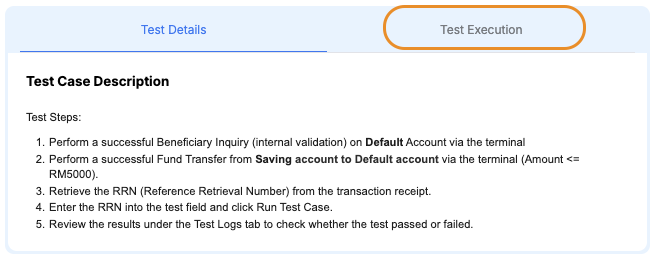
- Enter Fund Transfer RRN from terminal receipt in the Retrieval Reference Number field
- Click “Run Test Case”
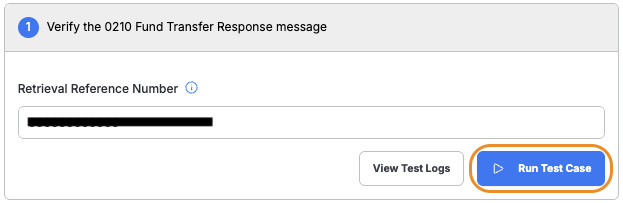
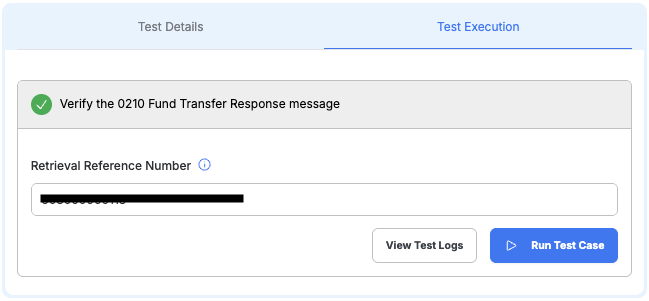
- Wait for validation
Note
IBFT2 requires only Fund Transfer RRN.
This is a single-step validation.
2.3 Review Results
- Passed: Status badge displays a green Passed label
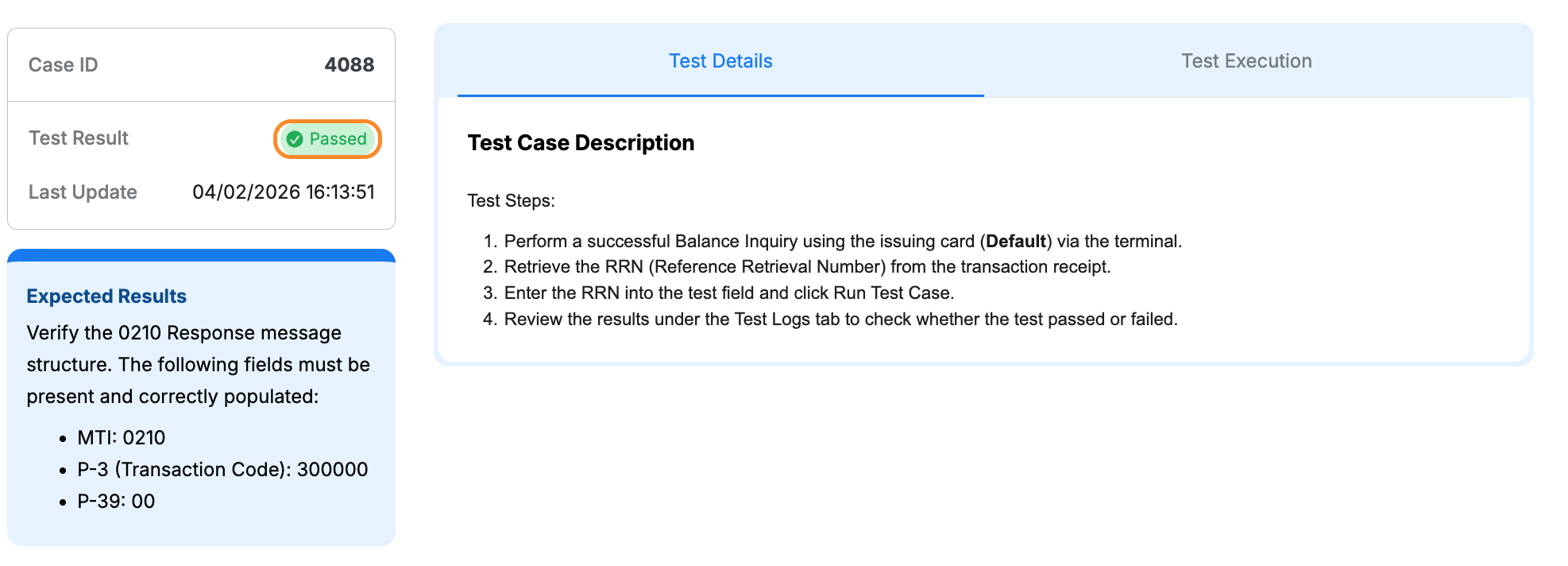
- Failed: Click View Test Logs to identify the issue and error details
Step 3: Complete All Test Cases
Completion Checklist
- Repeat Steps 1–2 for each test case in Scenario 2 – ISS
- Complete all account type combinations specified in test cases
- Ensure all test cases show “Passed”
- Review test logs for any failures